Student guide · Materials and boards
Work on a shared board
The board is saved. What you worked out in the lesson is still there tomorrow.
Students whose tutor teaches on a whiteboard.
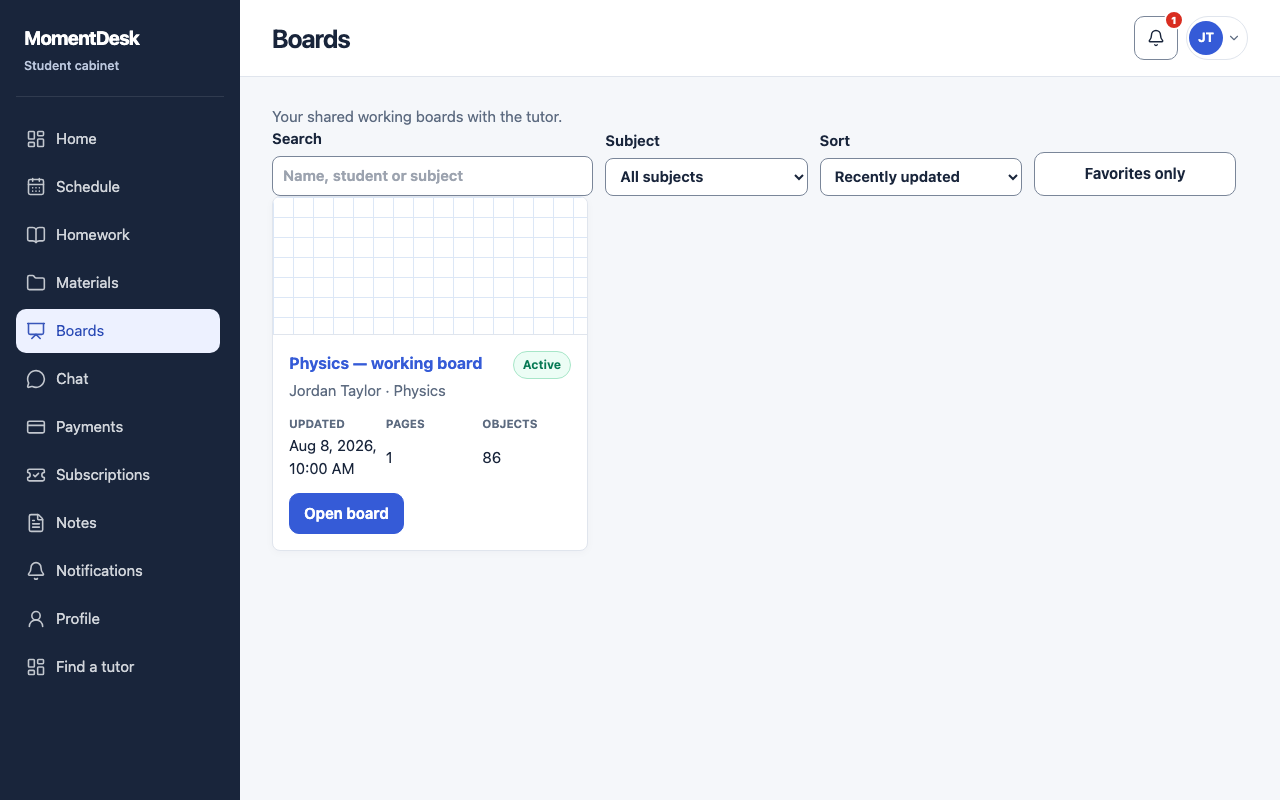
What you end up with
You can revise from the actual explanation instead of your memory of it.
What to do
Open Boards
Choose Boards in the menu. Each board belongs to a subject you study with your tutor.
Open the board
Open a board to read it or to work on it. You and your tutor can write on it at the same time.
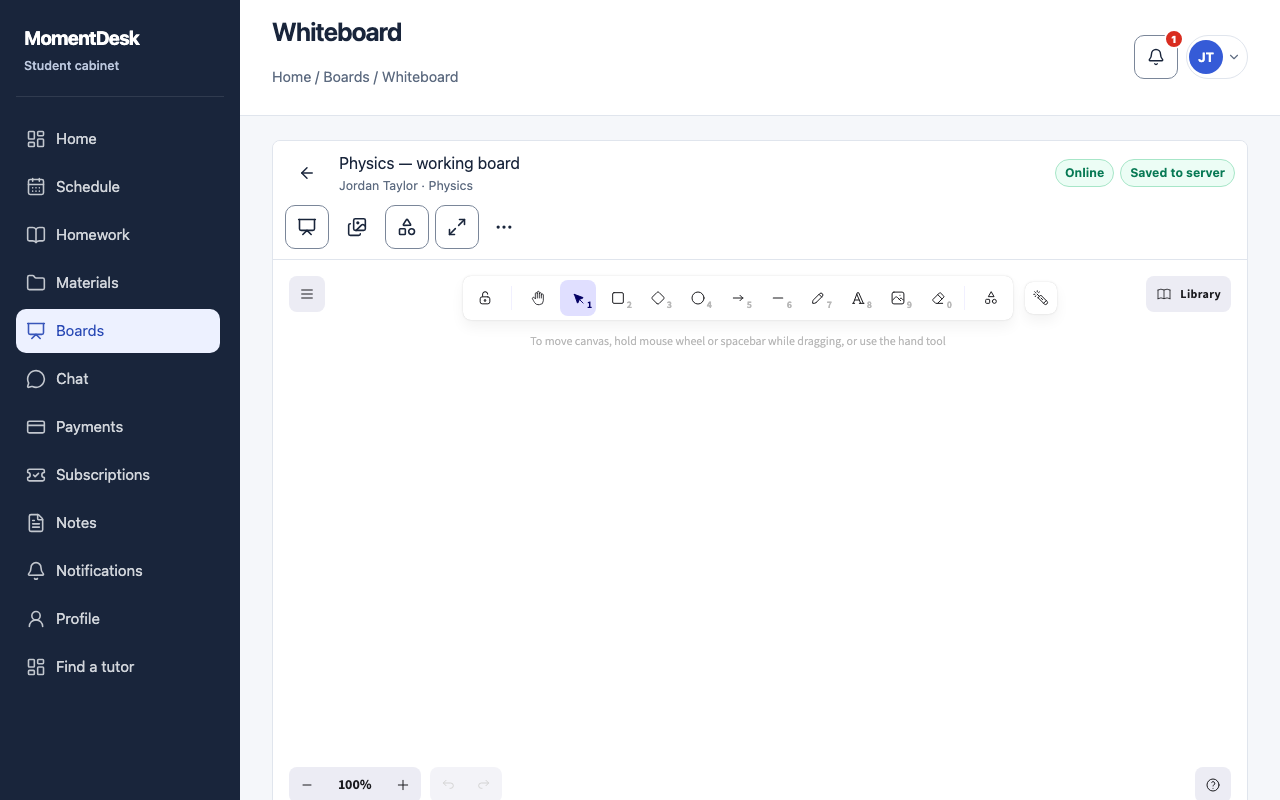
The MomentDesk interface in English, shown with fictional names and records. Watch the saving state
The indicator reads Saved to server when your work has reached MomentDesk. On a weak connection it may say a draft is saved on your device — stay on the page until it syncs.
Come back later
Reopen the board to revise. Nothing is wiped at the end of the lesson.