Tutor guide · Materials and boards
Work on a board together
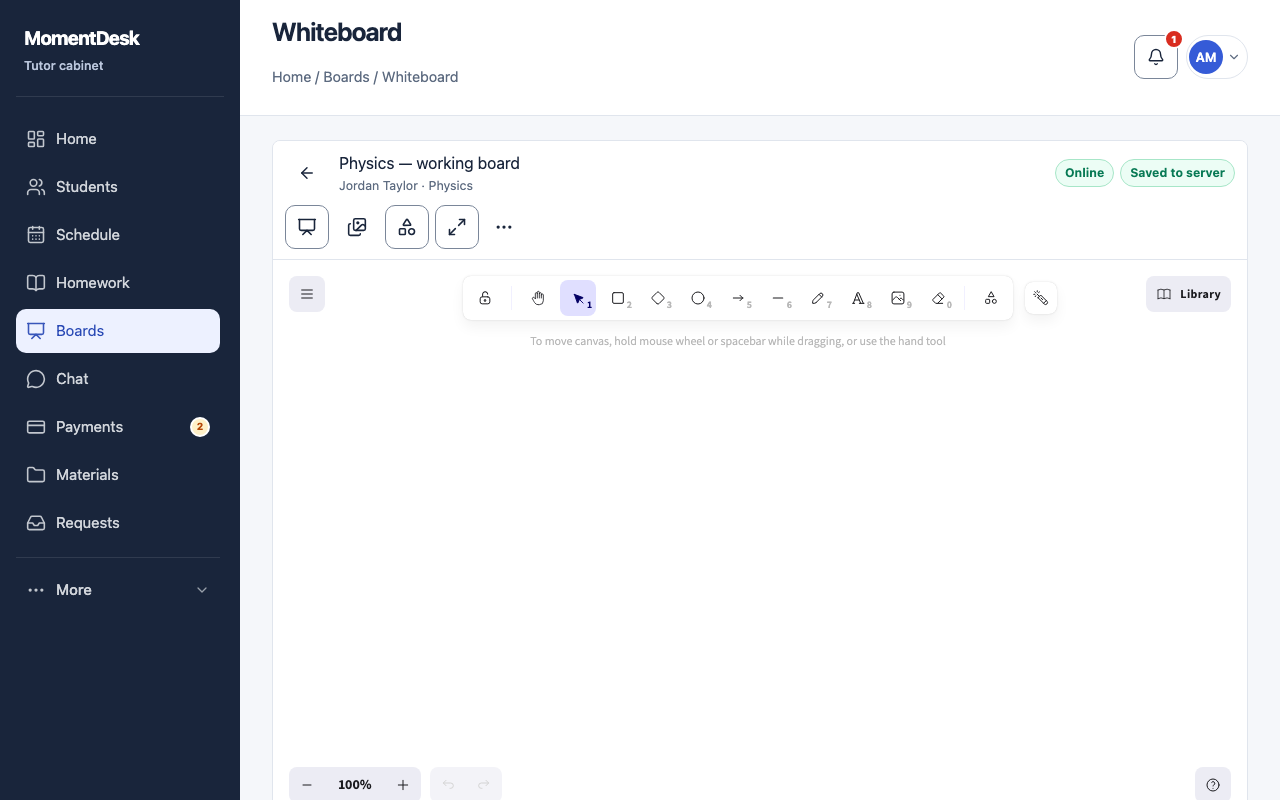
You and the student work in the same space, and the board keeps the result.
Tutors explaining something that needs to be drawn.
What you end up with
The explanation survives the lesson and can be reopened next time.
What to do
Open the board
Open the board from Boards, or from the lesson workspace during a lesson.
Use the tools
Write, draw, add shapes and text. Insert photos on board and Attach documents bring in material from your device.
Crop a picture
Select an image and choose Crop image. Adjust the crop and confirm it; dragging the normal corner handles resizes the image.
Watch the saving state
The indicator reads Saved to server, Syncing, Draft saved on device or Offline · draft is safe. Wait for Saved to server before closing on a shaky connection.
Keep a version
Save version records a checkpoint under Version history, and Restore brings one back. Use it before reorganising a busy board.
Work full screen
Full screen hides the rest of the workspace while you teach.
Good to know
- Both of you can edit at the same time; changes merge rather than overwriting each other.
- A student opens the same board from their own Boards page.
If something goes wrong
- The board says a draft is saved on the device.
- The connection dropped. Stay on the page until it reads Saved to server.