Student guide · Messages
Message your tutor
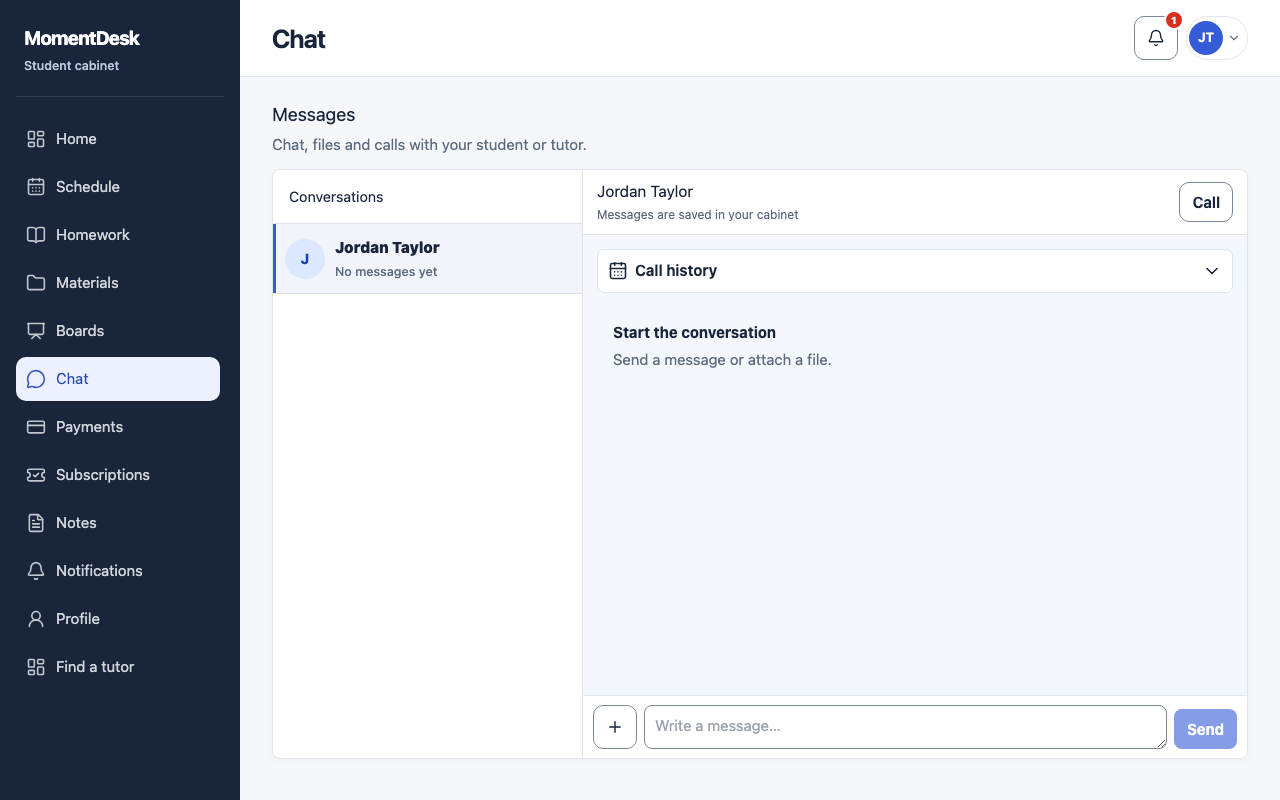
Chat keeps the conversation with your tutor next to your lessons and homework.
Students who need to ask something between lessons.
What you end up with
Your question is where your tutor will see it.
What to do
Open Chat
Choose Chat in the menu.
Write your message
Type in the message field and choose Send. Use Attach files to send a photo of your work or a document.
Find older messages
Show previous messages loads the earlier part of the conversation.
Check whether calls are available
The call control is only usable when calls are enabled for your workspace. Otherwise MomentDesk says calls are not configured yet and chat is available.
Good to know
- Chat becomes available after you have accepted your invitation and signed in.
- Your parent does not see chat conversations.