Tutor guide · Messages
Message a student and create a group chat
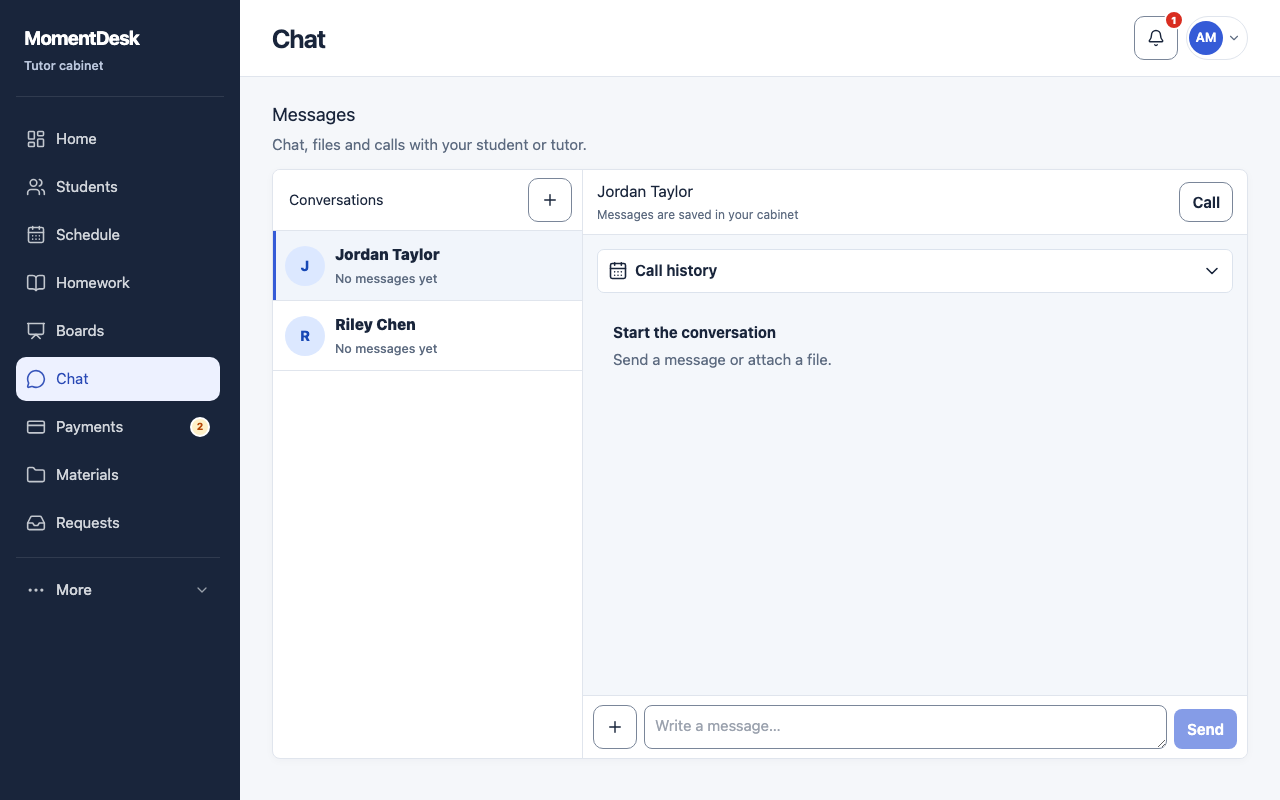
Chat is attached to the student record, so the conversation stays with the teaching work.
Tutors coordinating between lessons.
What you end up with
Arrangements are in one place instead of scattered across messengers.
What to do
Open Chat
Choose Chat in the menu, or open a student record and message them from there.
Write and attach
Type in the message field and choose Send. Attach files adds a document or image to the conversation.
Create a group
New group starts a conversation with several students. A group needs at least two connected students, so invite them first.
Manage members
Group members adds or removes students. End an active call before editing members. Delete group ends its call and hides the conversation from user accounts; history remains in the system.
Check whether calls are available
The Call control starts a call when calls are enabled for your workspace. If they are not, MomentDesk says calls are not configured yet and chat is available; use your usual meeting service instead.
Good to know
- A student can chat only after accepting their invitation and signing in.
- Parents do not see chat conversations.