Tutor guide · Your booking page
Fill in and publish your public profile
Your public profile introduces you to students. Publishing, opening booking and allowing search indexing are separate settings.
Tutors who want a page to send to new students.
What you end up with
A page presenting your actual lesson options with the visibility you chose.
What to do
Open the editor
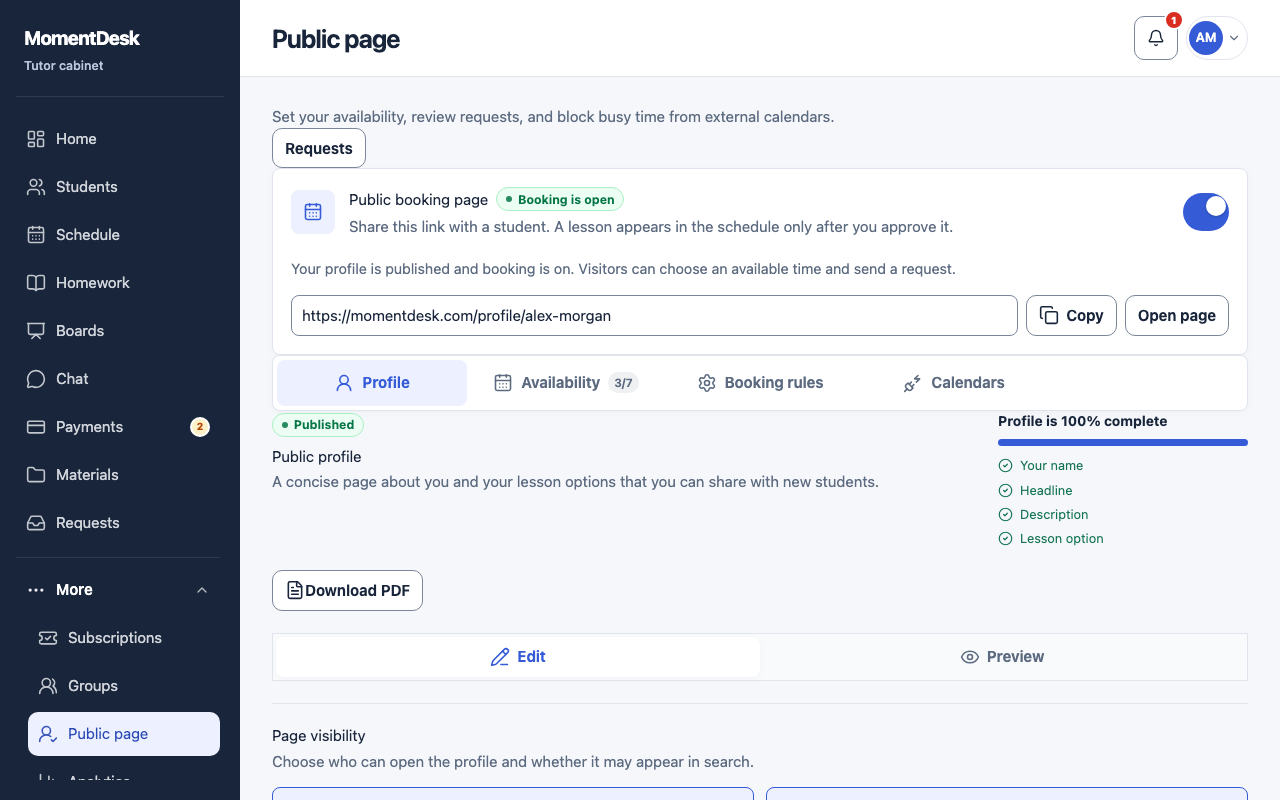
Public page sits under More in the menu. It opens on the Profile tab, beside Availability, Booking rules and Calendars. Open Requests in the main menu to manage booking requests.
Write the headline and the about text
Complete Short headline and About you, then explain how your lessons work. Publishing also requires your name in account settings.
Add what you teach
Add each subject with its audience, goals, duration and price. You can hide a price and still allow bookings. Check the Currency of each option.
Fill in the background
Education, the year you started teaching and the languages you teach in help a reader decide.
Choose visibility and publish
Enable Public page and choose Publish. You need a headline, description and at least one complete lesson option. Show in search separately permits a sitemap entry and indexing; it does not guarantee a place in results.
Open booking separately
A published profile can keep booking closed. To receive requests, configure hours and rules, then turn on booking at the top. Booking is open confirms visitors can send requests.
Good to know
- After publishing, the address has Copy and Open page controls. Check the page as a visitor before sharing it.
- The public page is accessible by link; permitting search engines is a separate choice.