Tutor guide · Your booking page
Share your page and available times
Your profile link shows lesson options and leads to booking when booking is open.
Tutors reaching out to a new student.
What you end up with
The person you wrote to can read about you and ask for a specific time.
What to do
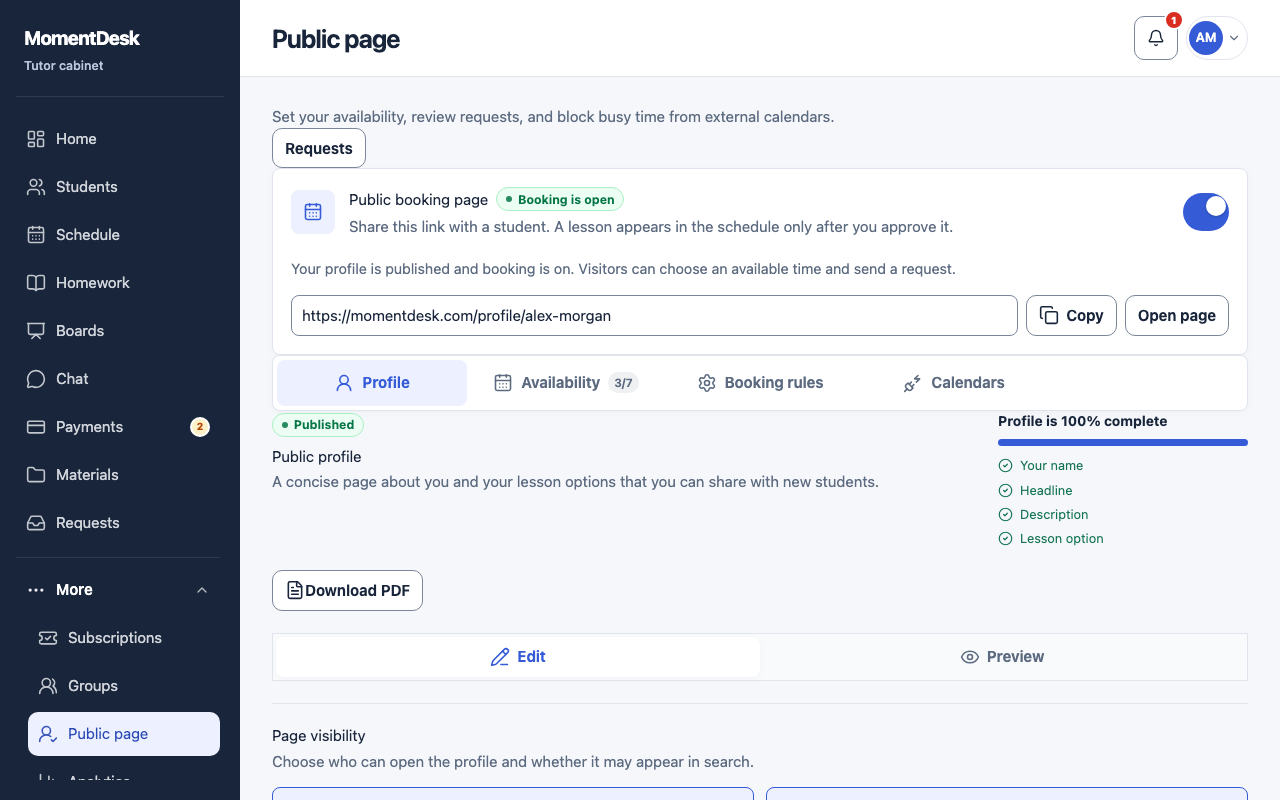
Check that booking is open
The banner at the top of Public page reads Booking is open when visitors can send a request. The switch beside it turns booking off.
Copy the address
The address of your page is in the same banner. Use Copy to put it on the clipboard and Open page to see it yourself.
Read it as a visitor
Open the address in a private window. Anyone holding the link can see its public information. Check your description, options, currencies and availability.
Handle the request
Check the time and visitor's note on Requests in the main menu. Approve creates a lesson after you choose the student and subject; Reject declines the request.
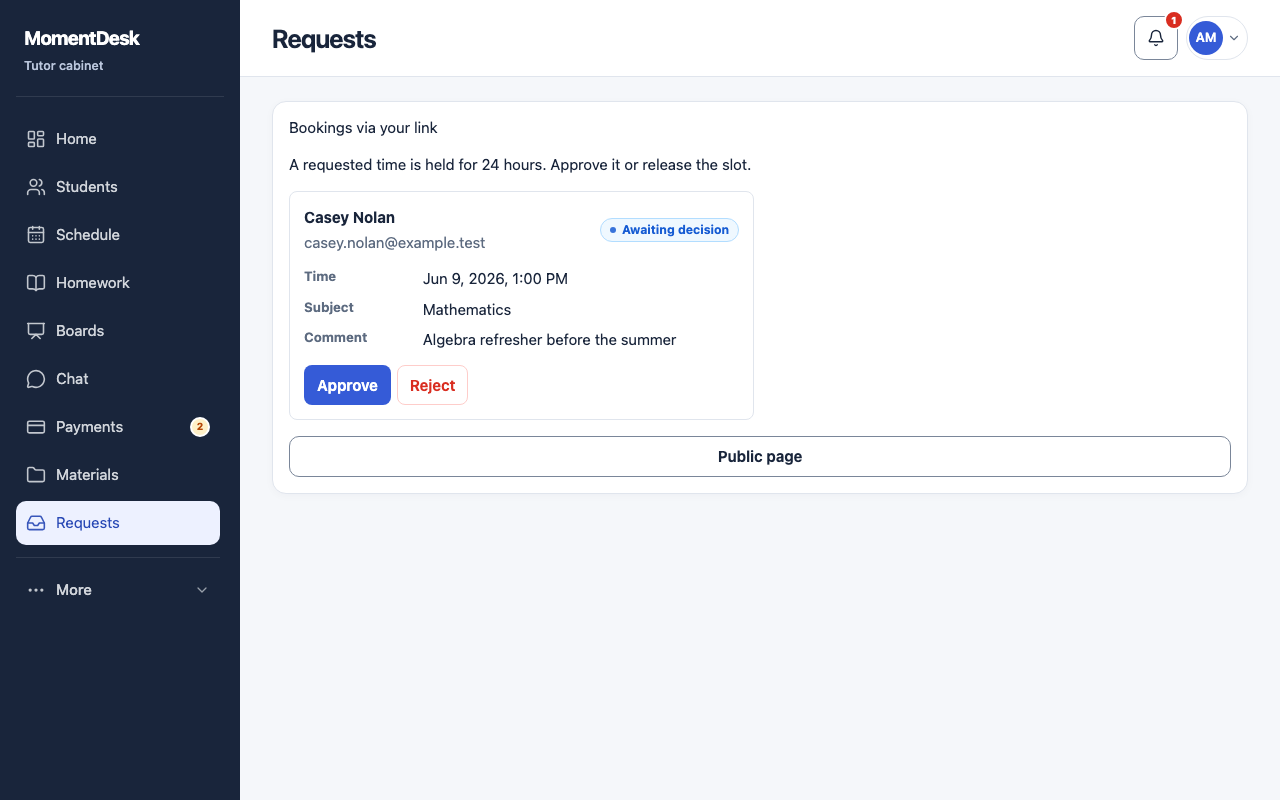
The MomentDesk interface in English, shown with fictional names and records.
Good to know
- Sharing the page is not the same as inviting a student. An existing student still needs a personal invitation to get their own workspace.
- Booking and search visibility are controlled by separate settings.