Send your work
- Sign in as Student using the personal link or code your tutor gave you. Open Homework and choose the assignment.
- Read the instructions and attached materials. Check the due date and the time zone displayed on the page; deadlines use your profile time zone.
- Write your response and attach any files the task needs. Wait for uploads to finish before sending. If the assignment contains interactive exercises, follow their on-screen checks and save instructions as well.
- Submit the assignment. Check that the page shows Submitted and your response appears in Solution history. An unsent draft is not a submitted answer.
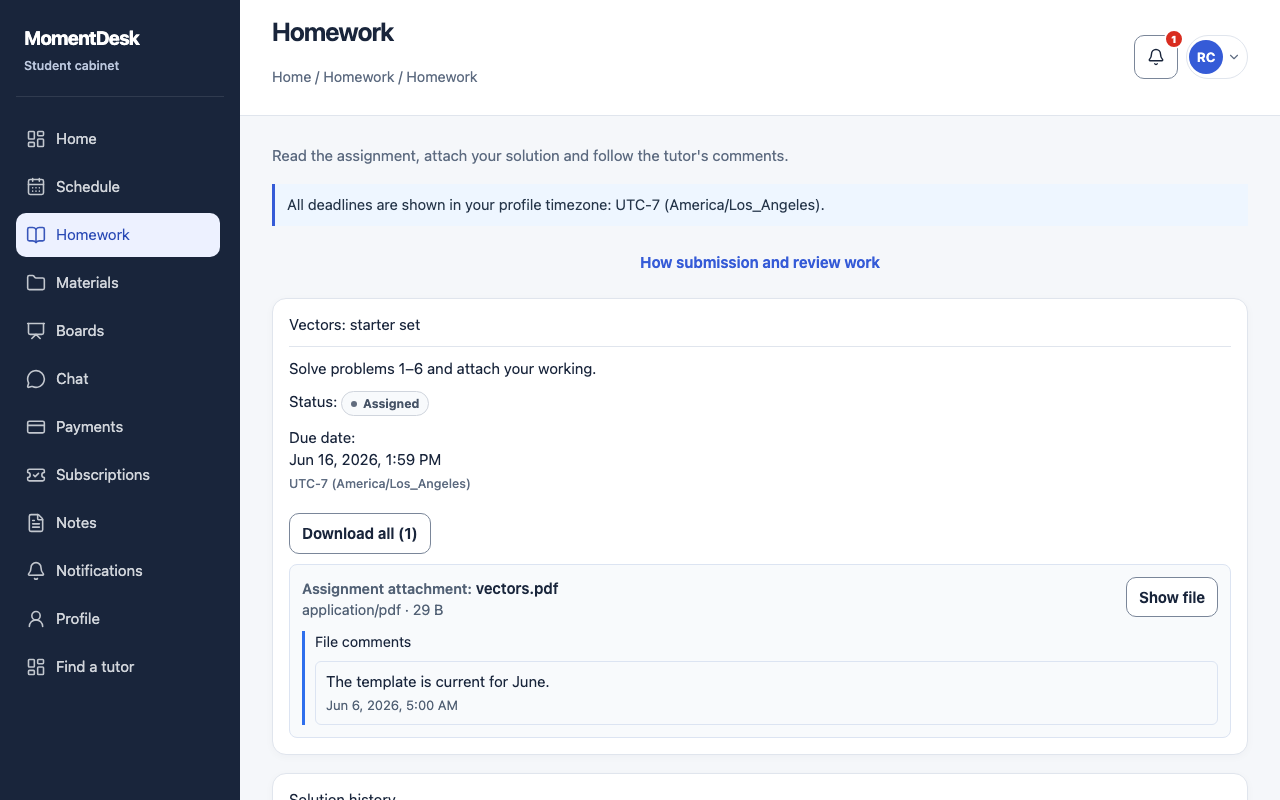
While your tutor is reviewing
Submitted means your work has been sent. A result appears after your tutor reviews it; submission does not guarantee an immediate grade.
If you forgot a file or explanation, use the option to supplement the solution when it is available. Check that the addition appears in the history. If the page does not allow another submission, contact your tutor instead of trying to send the same work repeatedly.
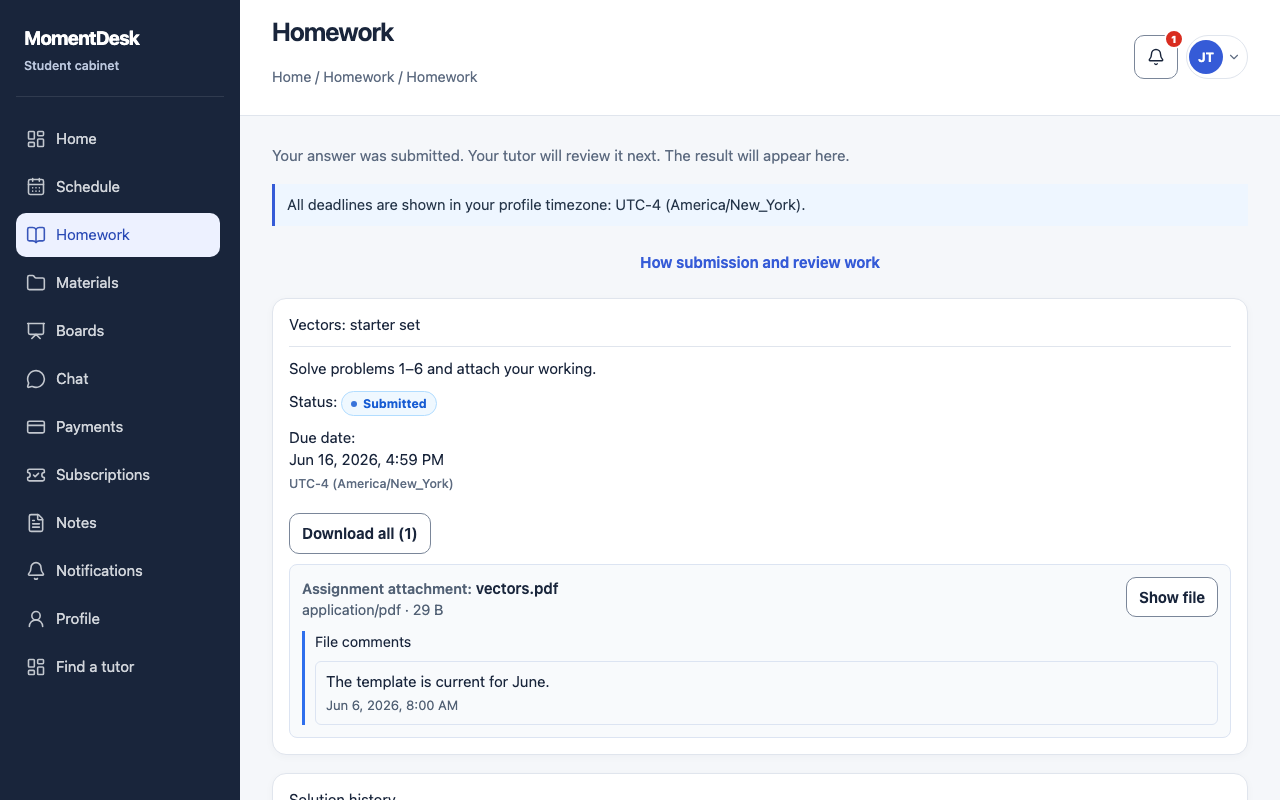
Read the result
- Open the assignment again after the review notification, or find it in your homework history.
- Read the Work reviewed block. It contains the tutor’s overall comment and a grade when one was given. A review can be complete without a grade.
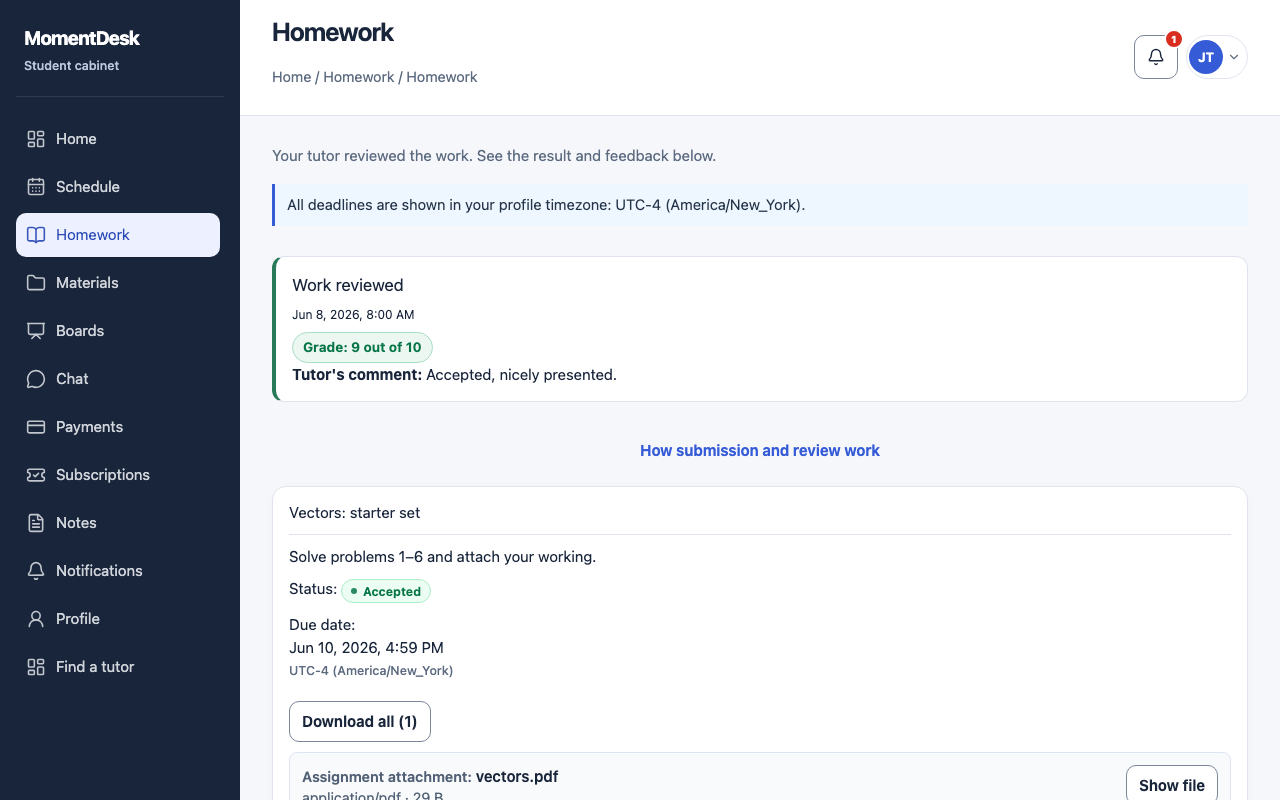
- Read comments attached to individual solution files, if any. Earlier submissions and feedback remain in Solution history.
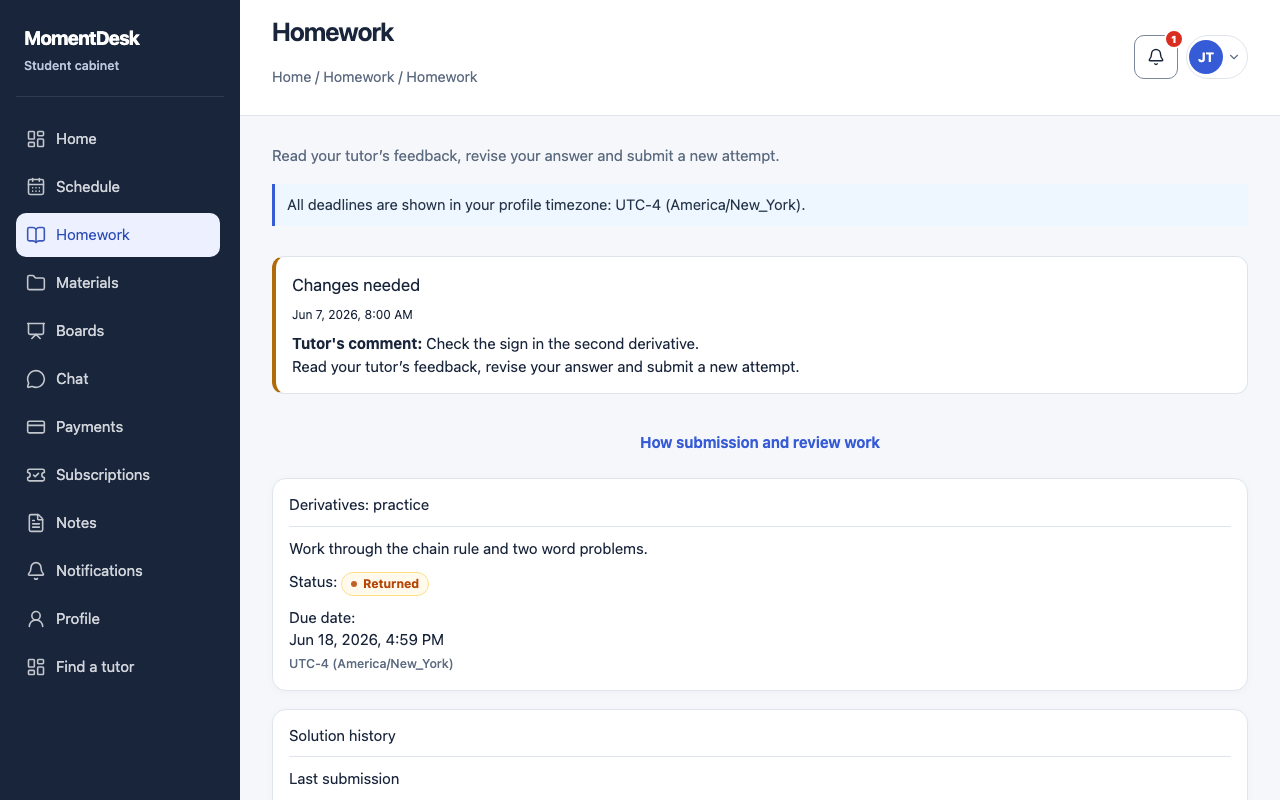
- Check the assignment status to decide what to do next. Accepted means the work is complete and resubmission is unavailable. If the tutor returned the work for changes, correct it and send a new attempt using the form on that page.
If something is missing
- No result yet: confirm that your answer is in Solution history and the assignment is Submitted. Your tutor may not have reviewed it yet.
- A grade is missing: read the comment and status. The tutor may have chosen to review without a grade.
- A file did not upload: check the error beside that file and retry the upload before submitting. Do not close the page while an upload is still pending.
- You cannot find the assignment: confirm that you used the correct student link or account and selected the right tutor when you have more than one.
- The due date looks different on another device: check the profile time zone shown beside the deadline. Ask your tutor if the intended deadline is unclear.
What a parent can see
Parents use their own invited account. They see only the information your tutor has allowed for that child. Grades and review comments require permission to view grades; finance access is separate. A missing grade in the parent’s view does not mean the student’s work was lost.
Do not share your student sign-in code to give a parent access. Ask your tutor to send a parent invitation.