Student guide · Signing in
Sign in without asking for a new link
After the first sign-in you can stop depending on the personal link.
Students who have already signed in once.
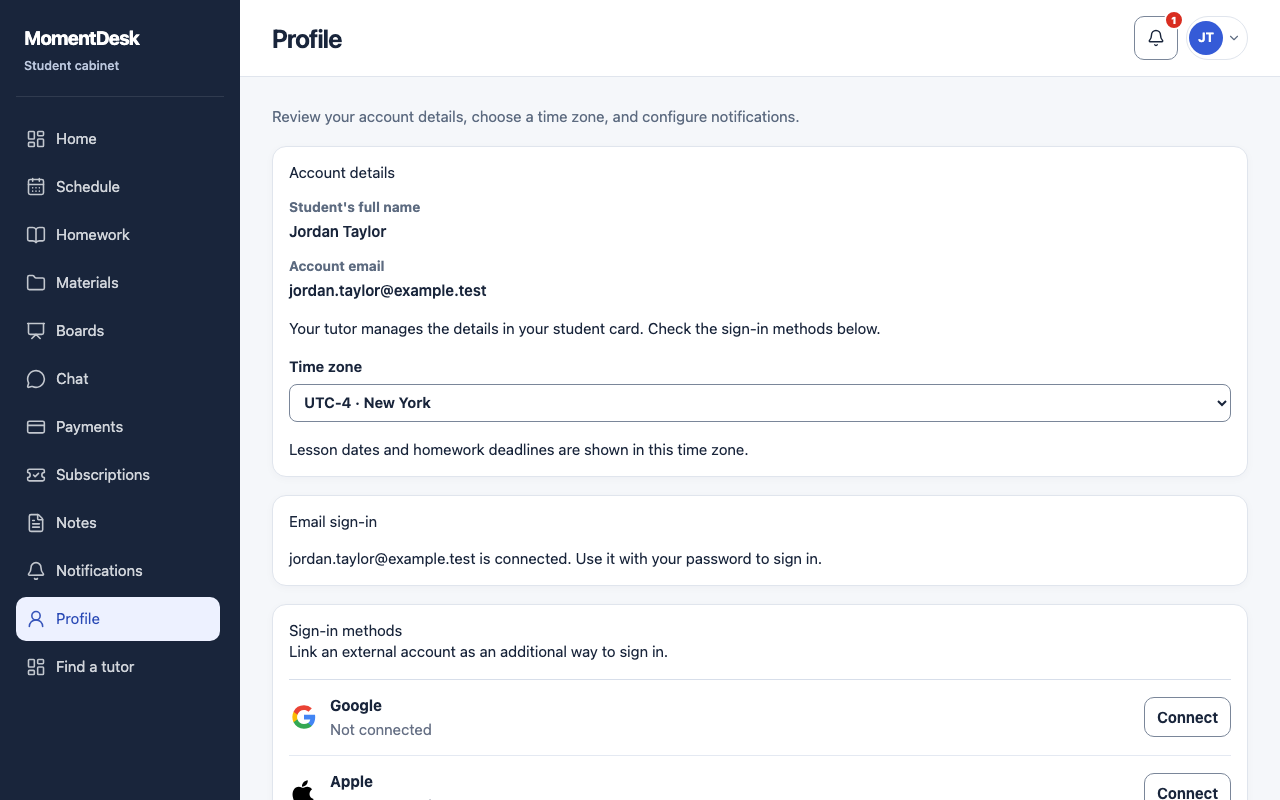
What you end up with
You get in from any device without asking your tutor for anything.
What to do
Open your profile
Choose Profile in the menu.
Choose email-and-password or an external account
For a code-only account, Email sign-in asks for a personal email and your current Student sign-in code. Choose Send email. Open the actual message within 30 minutes, sign in to that student account if asked, then enter and repeat a password and Confirm email and save password.
Or link an external account
Under Sign-in methods, use Connect for an available provider such as Google or Apple and complete its sign-in. Only configured providers are offered. The last remaining sign-in method cannot be disconnected.
Test it
Sign out and sign back in the new way before you need it in a hurry.
Good to know
- Your tutor manages your name and contact email. You manage how you sign in.
- After confirming email-and-password sign-in, your tutor’s previous code and link no longer open this account. Use your confirmed email and password.