Student guide · Signing in
Sign in for the first time
Your tutor sends a personal link and a sign-in code. Either one opens your own workspace.
Students invited by a tutor.
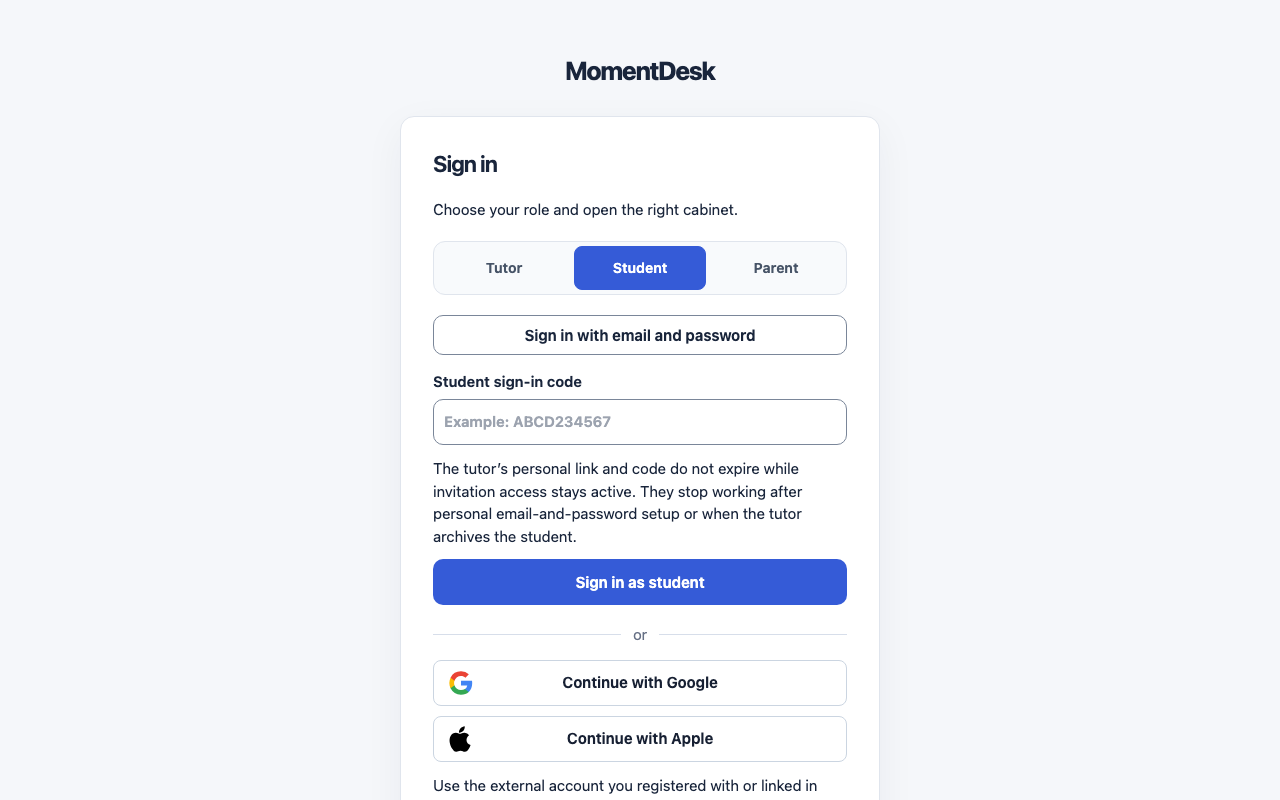
What you end up with
You can see your lessons, homework and materials in your own account.
What to do
Open the personal link
Open the link your tutor sent you. MomentDesk checks it and opens your workspace automatically.
Or use your code
On the sign-in page, choose Student and enter your Student sign-in code, then Sign in as student. The code looks like ABCD234567.
Accept the terms
On the first sign-in you are asked to accept the terms and the data processing consent. Read them before continuing.
Check that it is your account
Your name should be in the top bar and your lessons in the schedule. If you see someone else's work, stop and tell your tutor.
Keep the link private
The link and the code both open your account. Do not forward them to anyone, including a parent — a parent gets their own invitation.
Good to know
- MomentDesk is for learners aged 14 and older. If you are 14–17, a parent or guardian confirms first; until then sign-in is refused with a message explaining why.
- The tutor’s personal link and code have no timed expiry while this profile access remains active. After you confirm personal email-and-password sign-in, use that instead: the previous tutor link and code no longer open the account.
If something goes wrong
- “A parent or guardian needs to confirm first.”
- Ask your tutor to invite your parent or guardian. You can sign in once they confirm.
- “Your tutor needs to confirm your age.”
- Ask your tutor to set your age group on your record.
- The link no longer works.
- Check that the complete link is correct and your tutor has not archived your record. If you set up personal email-and-password sign-in, use that. Otherwise ask your tutor to check your access and resend the invitation.