Tutor guide · Schedule
Change or stop a series
The Series dialog changes the recurrence rule. To move a date, use Reschedule and choose the scope.
Tutors whose regular slot has to move or end.
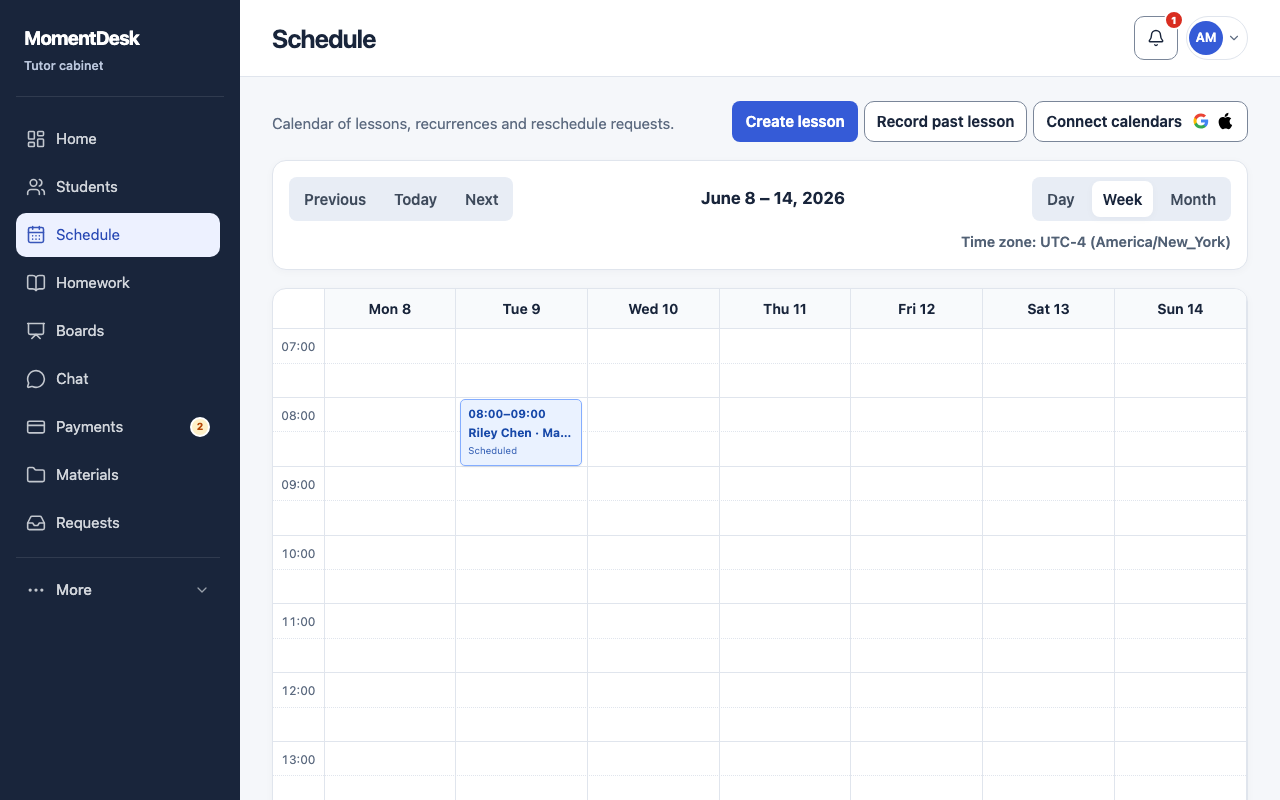
What you end up with
Eligible future lessons change; past lessons and individual exceptions retain their records.
What to do
Open the lesson
Open any lesson of the series in Schedule and choose Series to manage the recurrence.
Distinguish the rule from a single move
To move one date, use Reschedule on the lesson. There, Recurrence scope offers This lesson only or The whole series. The Series dialog itself edits the rule for future lessons, not one lesson.
Change settings and the end
Adjust weekdays, time, duration, time zone or the end date. When changing weekdays in a series that has started, choose an end date today or later; a lesson-count limit changes to a date limit. The dialog shows the current limit and status.
Review the result
Review the selected period and exceptions, choose Review series changes, then check the calendar. If an overlap warning appears, read it before a separate confirmation.
Stop the recurrence
Stop recurrence ends the rule and removes future automatically generated lessons. Taught lessons remain in history. Check the calendar after stopping.
Good to know
- Changing series settings preserves past, cancelled, deleted and individually edited occurrences.
- A student's reschedule request applies to a single lesson, not to the series.