Tutor guide · Schedule
Complete a lesson and change its price
Completing a lesson records that it was taught and calculates payment. Check the amount and package conditions before confirming.
Tutors closing the teaching day.
What you end up with
The taught lesson is recorded in history, and the student's account reflects its cost.
What to do
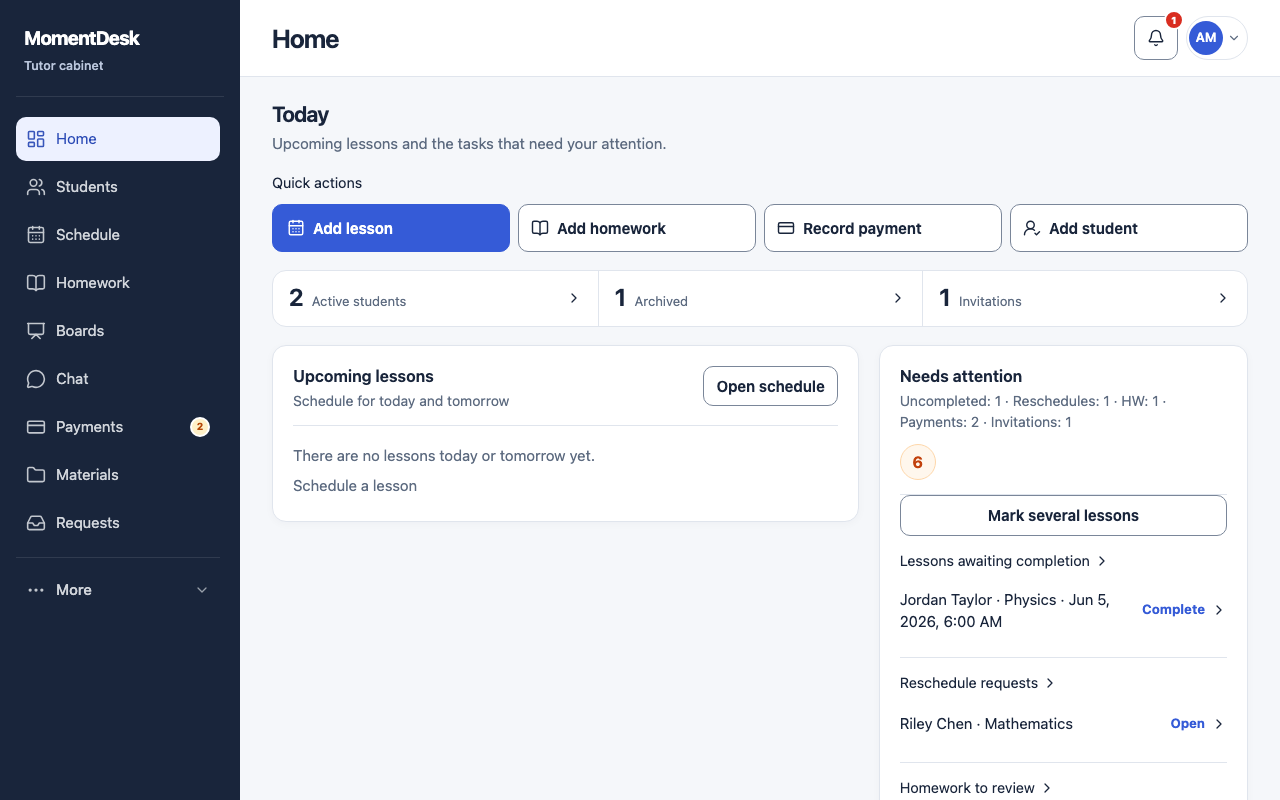
Find the lessons waiting
On Home, Lessons awaiting completion lists lessons whose time has passed without a result. Mark several lessons confirms a batch in one go.
Complete the lesson
Open the lesson and choose Complete. Check the amount: a lesson package or advance is used automatically, and anything uncovered becomes due. Enter 0 for a lesson without a charge.
Record money separately
Completing a lesson does not transfer money. Record what you actually received under Payments.
Change the price of one lesson
Edit price changes this scheduled lesson only. The subject rate and the other lessons in the series stay as they were.
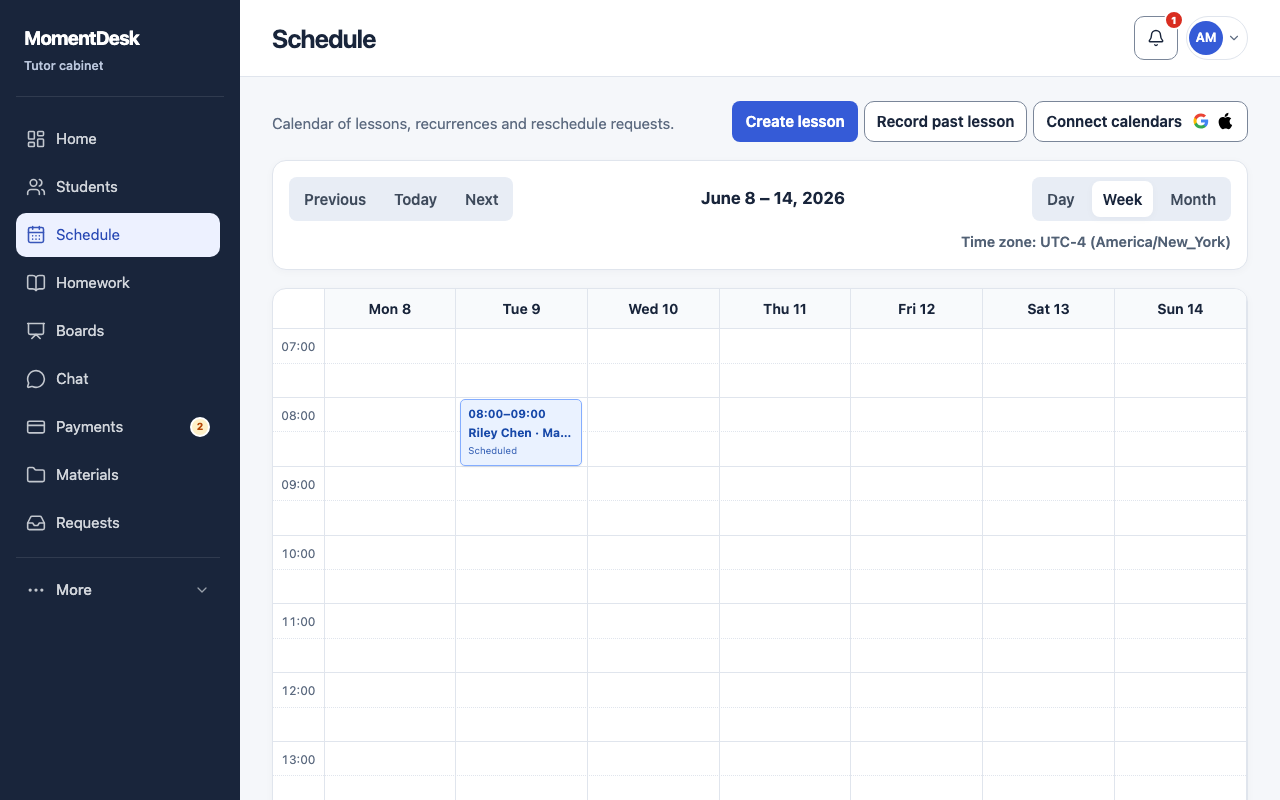
The MomentDesk interface in English, shown with fictional names and records. Record a past lesson
For a taught lesson missing from the calendar, use Record past lesson. Check the student, subject, time, duration, amount and financial impact before saving. It is immediately recorded as completed; record money received separately.
Good to know
- A calendar entry alone never means a lesson was taught.
- If a lesson did not happen, cancel it or mark a no-show rather than completing it.