Tutor guide · Payments
Record a payment and set an advance
MomentDesk does not take payments for lessons. You receive money your usual way and record it here.
Tutors keeping their own books.
What you end up with
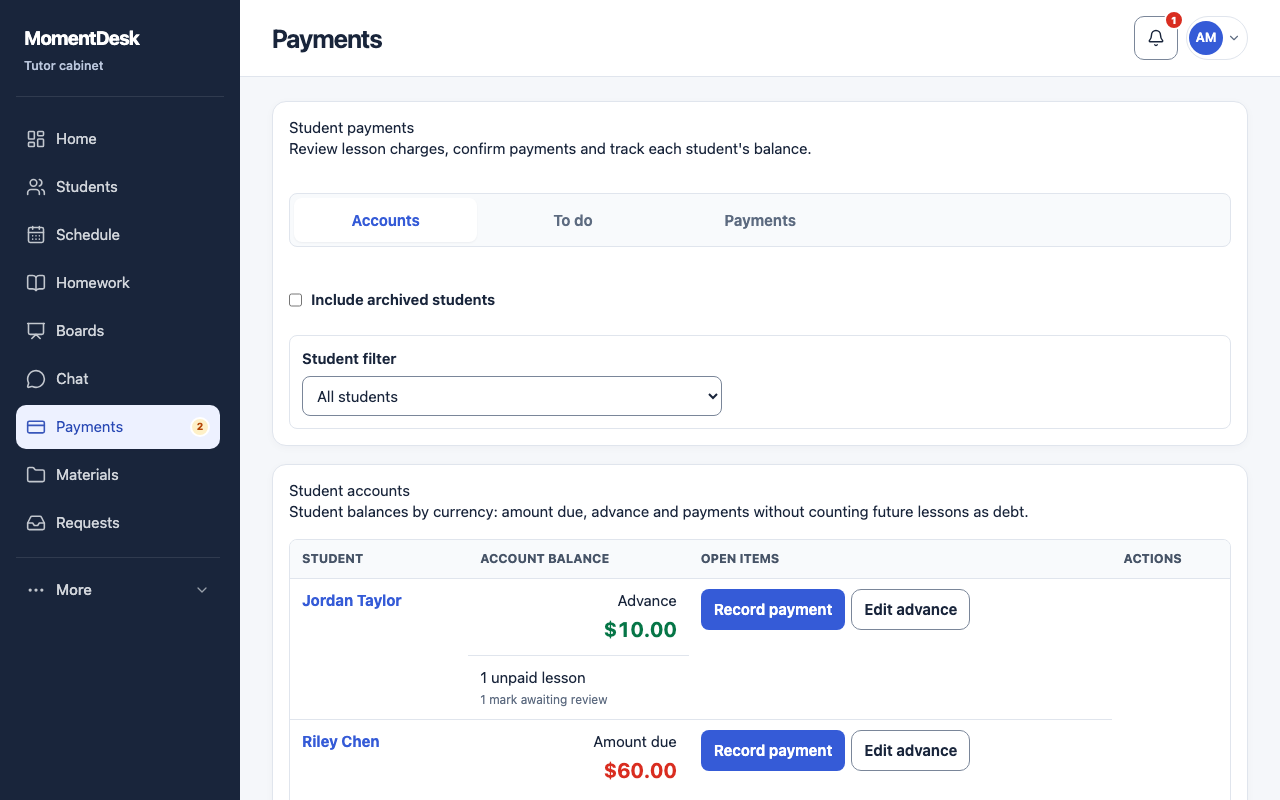
Each student's balance matches what you have really been paid.
What to do
Open the account
Go to Payments and the Accounts view. Each student shows a balance: an amount due, an advance, or nothing outstanding.
Record the payment
Choose Record payment. Enter Amount received, When the money was received and Payment method. Check the account currency. This account payment closes the oldest charges first and keeps any remainder as an advance.
Describe what it covers
Fill in Payment description with what the money covers. It appears in your payment records, so use wording you will understand later.
Confirm
Choose Confirm payment. The amount lands on the student's account in the currency you recorded it in.
Correct the advance
Edit advance sets the final advance amount, not the change; 0 clears it. If the account has debt, first record received money or correct the debt with a manual adjustment.
Fix a mistake
Correct mistake cancels the entire mistaken payment; record the corrected payment again. Record refund records a full refund only after you returned the money. Both decisions remain in history.
Good to know
- The payment date has to be today or earlier in your profile time zone.
- Completing a lesson creates a charge; it does not record money. The two are separate on purpose.
- Amounts are recorded in the currency shown beside the field and are never converted for you.