Tutor guide · Homework
Edit an assignment and issue it again
Choose the edit scope explicitly. Editing one assignment does not change other students’ work.
Tutors who teach the same topic more than once.
What you end up with
The intended recipients see the correction; issuing the work again creates a separate assignment.
What to do
Find the assignment
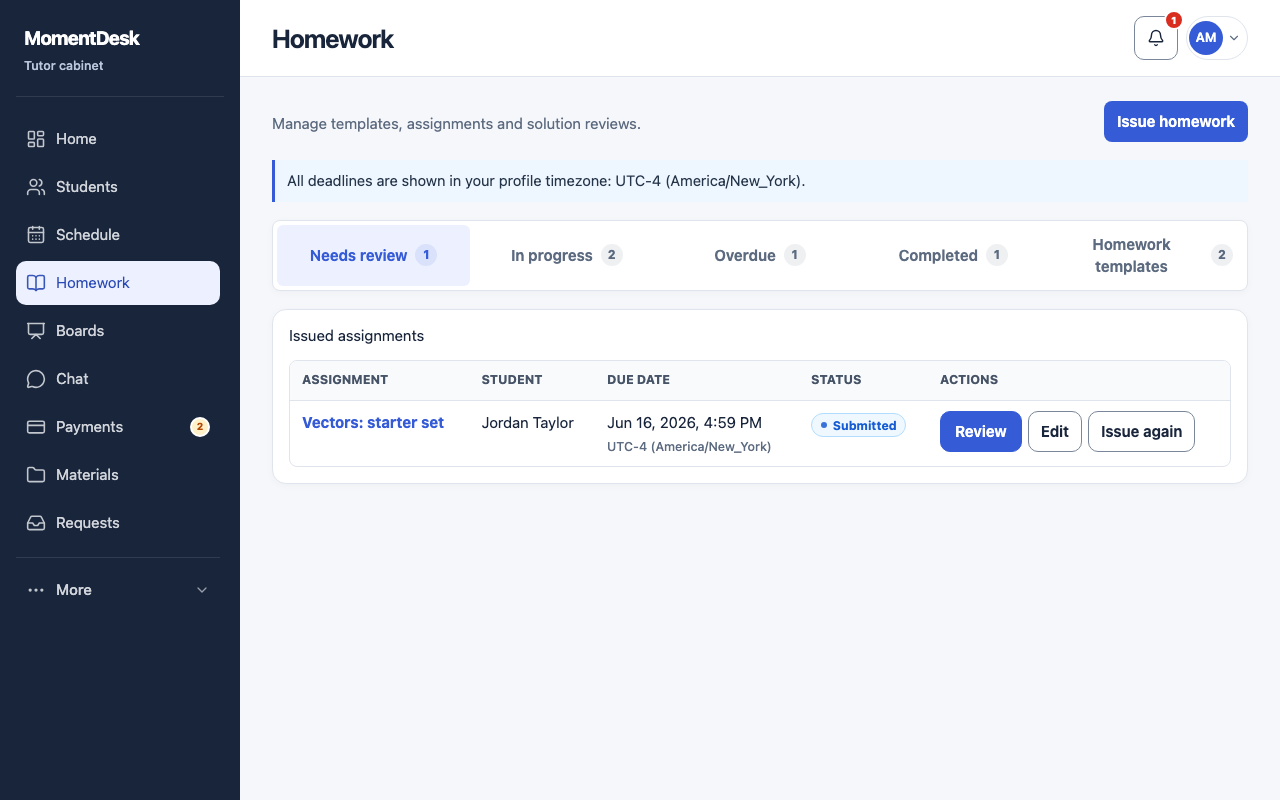
Use the views in Homework: Needs review, In progress, Overdue, Completed and Homework templates.
Edit only this student’s work
Open the assignment and choose Edit assignment and files. Change the title, description, subject, files or due date, then Save assignment. Other students’ assignments stay unchanged.
Edit for all listed recipients
Choose Edit for all recipients, check the recipient list and change the title, description, subject or files. Save for everyone preserves each recipient’s deadline, submissions and results. If a recipient is read-only, edit the selected student separately.
Find work to reuse
Homework templates lists earlier work for reuse. Open the assignment you want to issue again.
Issue it again
Use Issue again, select the students and an optional new deadline. This creates a new assignment; the earlier one keeps its submissions and grade.
Good to know
- After issuing answer-key exercises, their questions and keys cannot be edited. Accept an answer manually or cancel the homework and issue a corrected copy.