Tutor guide · Account and settings
Choose which notifications you get
Channels decide where a notification arrives; topics decide what is worth one.
Tutors tuning how much MomentDesk tells them.
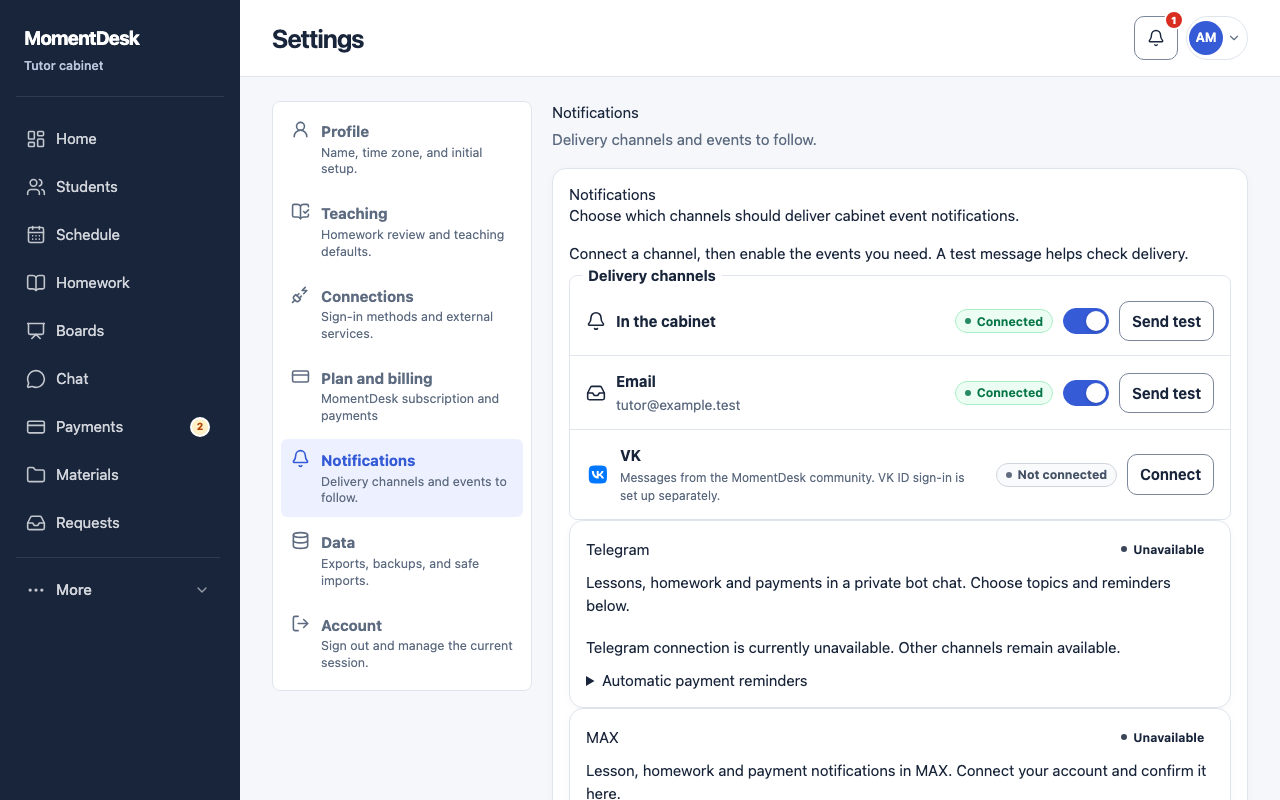
What you end up with
Your enabled channels and topics control which event notifications are created and delivered.
What to do
Open the section
Go to Settings → Notifications.
Choose the channels
Choose the channels you want. In the cabinet creates workspace notifications when enabled together with the topic; Email sends to your account address. Channels show connected, pending, disconnected, disabled after errors or unavailable.
Connect Telegram
When Telegram is available, choose Connect Telegram, open the MomentDesk bot from the link and start it. Return and confirm your Telegram account. Notifications begin after confirmation. Disconnect here or send /stop to the bot to stop them.
Choose the topics
Follow Lessons and reschedules, Homework and Payments independently.
Set the reminders
Switch on a lesson reminder 24 hours or 1 hour before, and a homework deadline reminder 24 hours before.
Send a test
Use Send test, then check delivery history and the actual message. A queued test is not confirmation that it arrived.
Good to know
- A channel that keeps failing is disabled automatically and shown as such; reconnect it rather than waiting.
- Switching an external channel off leaves workspace notifications active only when In the cabinet and the relevant topic remain enabled.