Tutor guide · Account and settings
Send feedback about MomentDesk
Feedback goes to the MomentDesk team. It is not visible to your students.
Tutors with a suggestion or a problem to report.
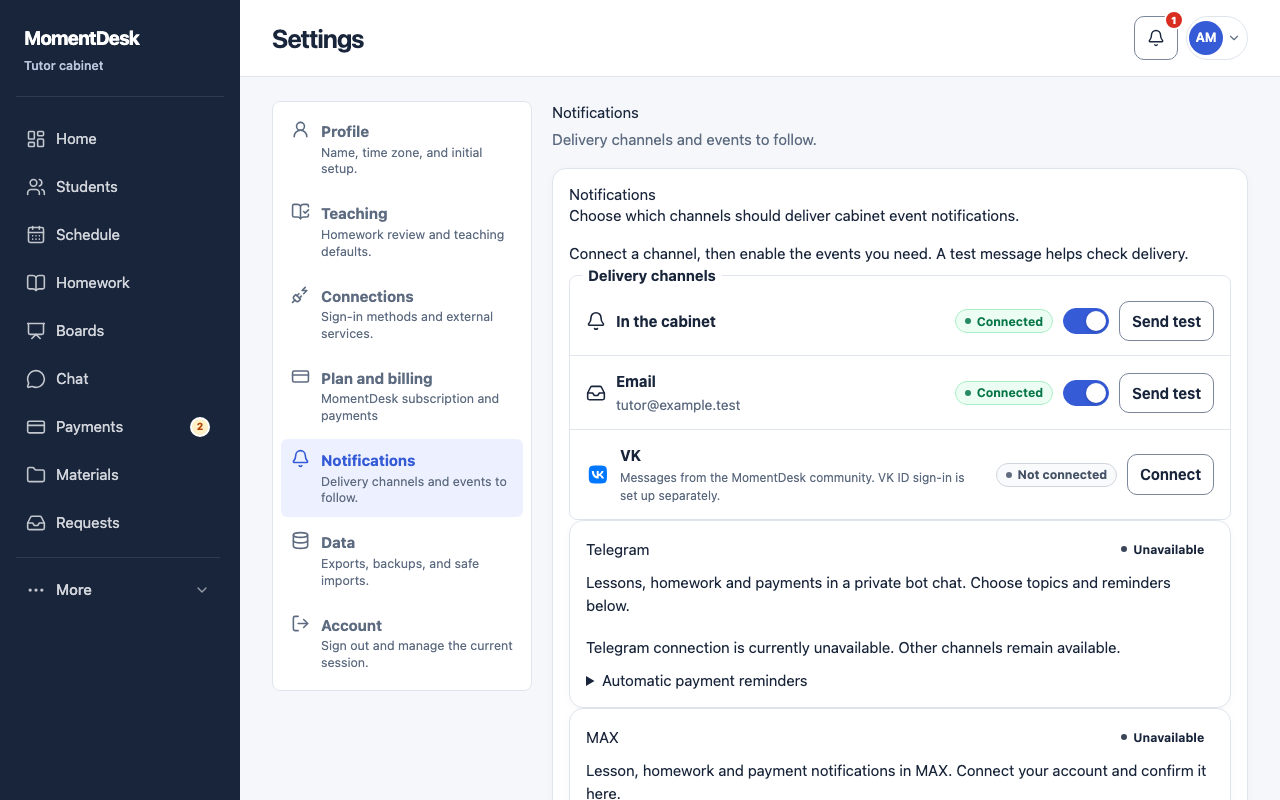
What you end up with
Your suggestion reaches the people who can act on it.
What to do
Open the form
In notification settings choose Suggest an improvement, or use a Share feedback invitation when MomentDesk offers it.
Describe the situation
Say what you were doing, what you expected and what happened. A screen name and a time help more than a general impression.
Send it
Choose Send. Your response is linked to your account so the team can follow up.
Control the invitations
Later, in a week postpones a survey; Stop offering surveys turns invitations off. The voluntary form stays available either way.
Good to know
- Do not include students' personal information in feedback.
- For an account or billing problem, open Help to message the support operator, or email MomentDesk support with the page and the error. Replies to the Help conversation appear in your account. Never include passwords or sign-in codes.