Parent guide · Getting started
Accept your invitation and open your workspace
You get your own account. It is separate from the learner's, and it shows only what the tutor opened.
Parents and guardians invited by a tutor.
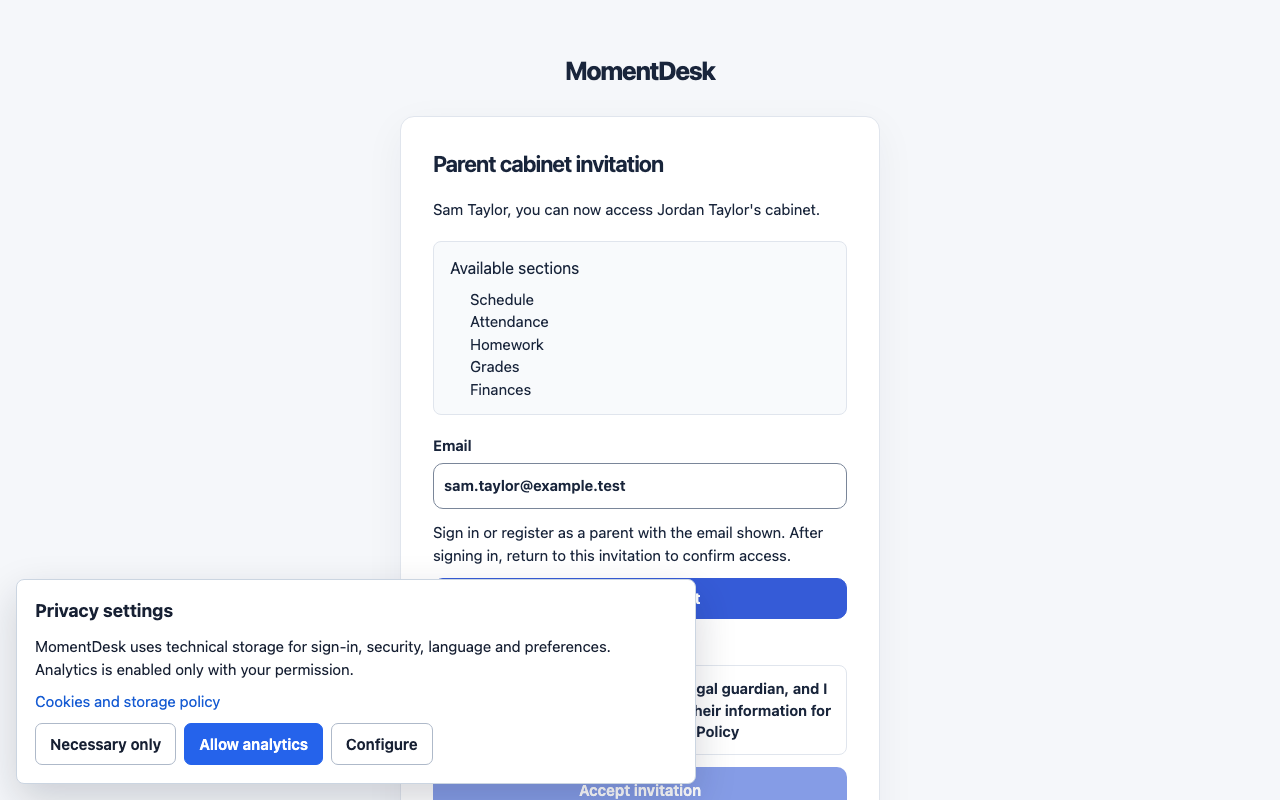
What you end up with
You can follow your child's lessons within the access the tutor granted.
What to do
Open the link
Open the personal link the tutor sent. MomentDesk checks it and shows the invitation.
Check what it covers
Available sections lists exactly what you will see: the schedule, attendance, homework, grades and comments, and finances. Anything not listed stays closed.
Confirm consent if the learner is 14–17
For a learner aged 14–17 the invitation includes the consent statement: you confirm that you are their parent or legal guardian and consent to MomentDesk using their information for lessons with their tutor. Without this the learner cannot sign in.
Sign in or create your parent account
Use the email shown in the invitation. If you are new, choose Create parent cabinet, set a password and accept the terms. You return to the invitation after signing in.
Accept the invitation
Check the guardian consent box if it is required, then choose Accept invitation. Your existing parent account gains only the sections listed in this invitation.
Sign in next time
Use Parent on the sign-in page with the email the invitation was addressed to.
Good to know
- The invitation link is valid for 14 days and is meant for one parent. Ask the tutor for a new one if it expires.
- Never sign in with the learner's personal link or code. It opens their account, not yours.
If something goes wrong
- The invitation is invalid or expired.
- Ask the tutor to create a new one.
- It says the invitation was already accepted.
- Sign in as a parent with the email it was sent to.