Tutor guide · Students
Give a parent or guardian access
A parent gets their own account. They never sign in with the learner's link, and they see only what you open.
Tutors teaching learners whose parents follow their progress, and every tutor with a 14–17 learner.
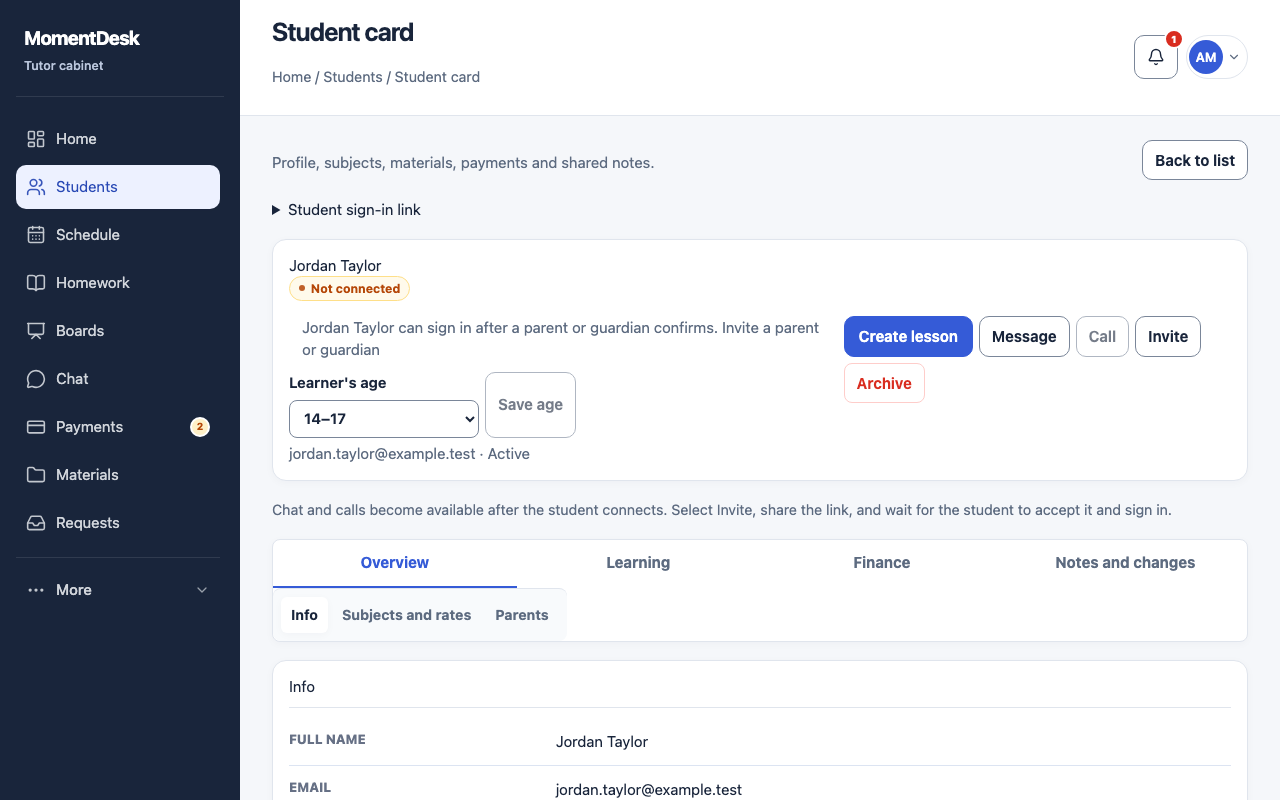
What you end up with
The parent follows the parts of the learner's work you chose, and nothing else.
What to do
Open the Parents tab
Open the student record and choose Parents in the Overview group. For a 14–17 learner, the reminder at the top of the record links straight here.
Enter the parent's details
Fill in Parent name and Parent email. These identify the invitation; the parent sets their own password when they accept it.
Choose the available sections
Switch on only what this parent should see: Schedule, Attendance and lesson status, Homework, Grades and final comments, Balance, payments, subscriptions and receipts. Grade access requires homework access.
Create and share the invitation
Choose Create invitation and share the personal link with that parent. The link is valid for 14 days and is meant for one parent only.
Manage access later
Close access stops the parent workspace without deleting anything; Restore access opens it again. The state is shown as Access open or Access closed.
Good to know
- For a 14–17 learner the same invitation carries the consent statement. Until the parent confirms it, the learner cannot sign in.
- A parent never sees chat conversations, the learner's submitted files or your private notes.
- Do not hand the learner's sign-in code to a parent. Send a parent invitation instead.