Tutor guide · Students
Invite a student with a personal link
Invite creates access to one student record. It is not a general link to the sign-in page.
Tutors giving a student access to their own workspace.
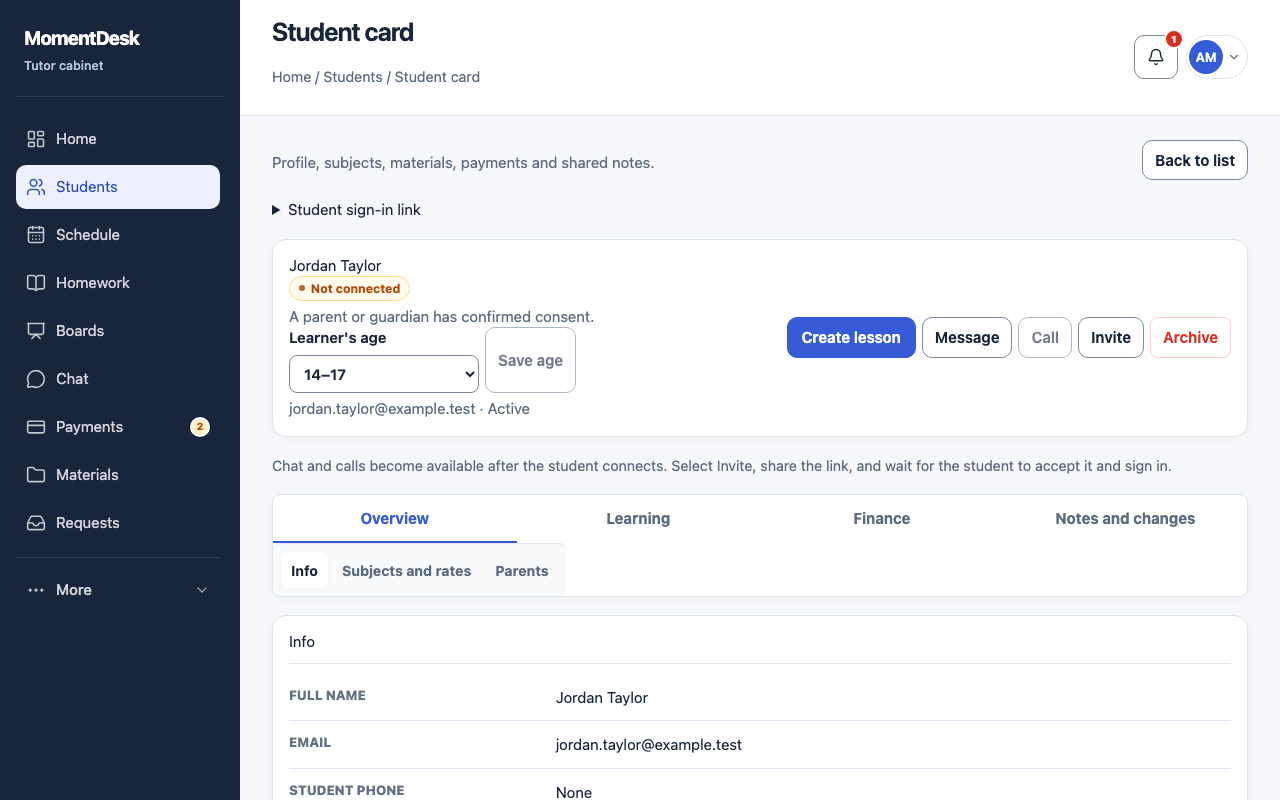
What you end up with
The student can open their own workspace with lessons, homework and materials once the access requirements are met.
What to do
Open the right student
Check the name and contact before you create an invitation, so you do not send one student's link to another.
Choose Invite
MomentDesk creates a personal sign-in link and a permanent sign-in code for that student.
Copy and share it privately
Use Copy for the link and Copy code for the code. Send them through a private channel. Both open the student's account, so never post them in a shared chat.
Watch the status
The list and the record show the state: Not connected, Waiting for sign-in, Invitation no longer valid or Account connected. Chat and calls become available once the student has accepted and signed in.
Offer a permanent sign-in
After the first sign-in the student can add a password or link an external account in their profile and stop depending on the link.
Good to know
- Choosing Invite again does not create a second student account.
- An archived student cannot be invited until you restore them.
- Homework appears in the student's account automatically. You never need to resend the invitation for a new assignment.
- Sign-in requires a declared age group. Learners aged 14–17 also need a parent or guardian's consent.
If something goes wrong
- The student says the link no longer works.
- Create a new invitation from the record and send the fresh link.
- The status stays “Waiting for sign-in”.
- The student has not finished signing in. Ask them to open the link and complete the steps; if consent is requested, a guardian must confirm first.