Tutor guide · Schedule
Reschedule a lesson and answer requests
Moving a lesson keeps its student, subject and price. Set the new time and duration in the form.
Tutors handling a change of plan.
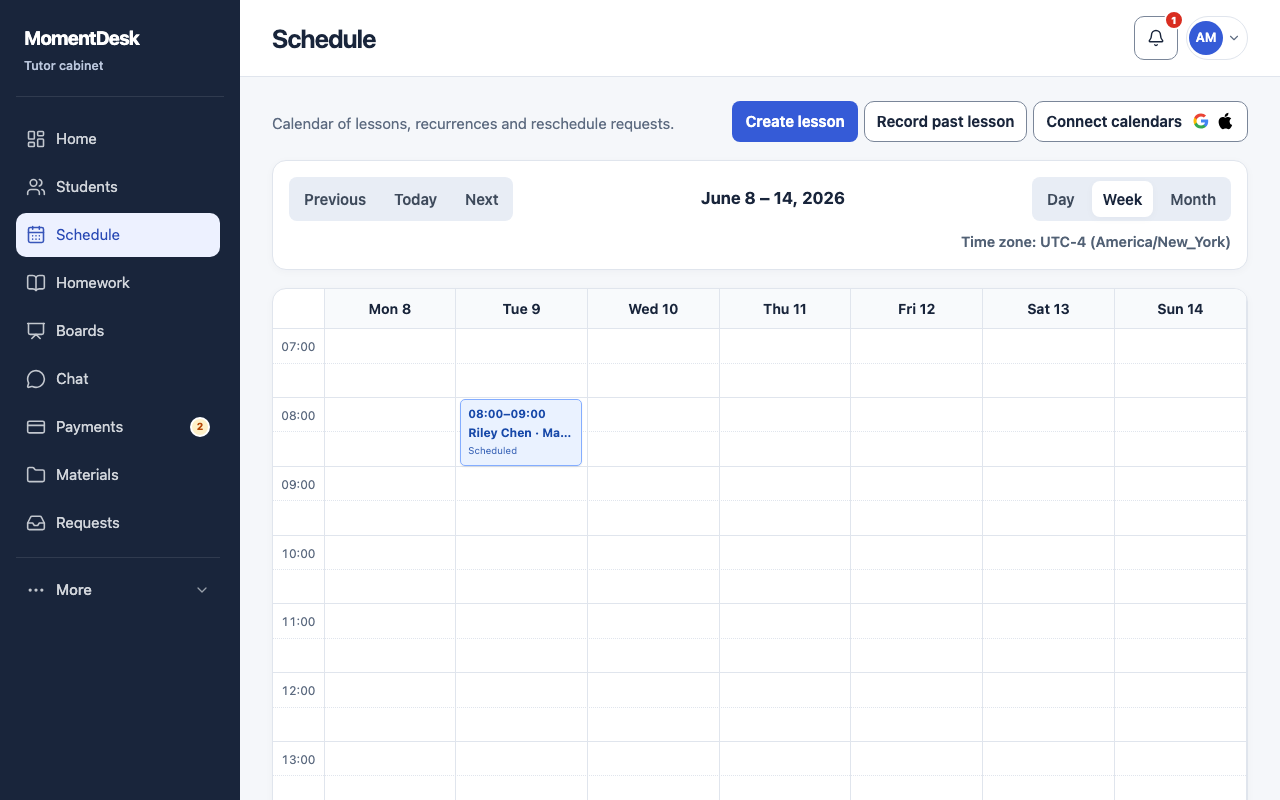
What you end up with
Both participants see the new time, and a decision is recorded for the processed request.
What to do
Open the lesson
Choose the lesson in Schedule, then Reschedule.
Set the new time
Choose the new date and time and check the time zone. Moving a lesson does not change its duration unless you change it.
Choose the scope for a series
For a lesson in a series, choose This lesson only or The whole series before saving.
Review a student's request
Reschedule requests appear on Home and in Change requests. Open one to see the Requested time and the student's reason. For a request outside the current calendar period, open Requests outside the current period.
Approve or reject
Check the displayed Financial impact before approving. Choose Approve to move the lesson to the requested time, or Reject to keep the original. Either decision is recorded in the Decision history, and the student is notified.
Good to know
- A request the student withdraws is marked Withdrawn and needs no decision.
- Approving a request moves the lesson for both of you; you do not have to edit it afterwards.