Tutor guide · Students
Set subjects, rates and lesson length
A rate belongs to a pair: one student and one subject. Two students can study the same subject on different terms.
Tutors who charge different rates for different students or subjects.
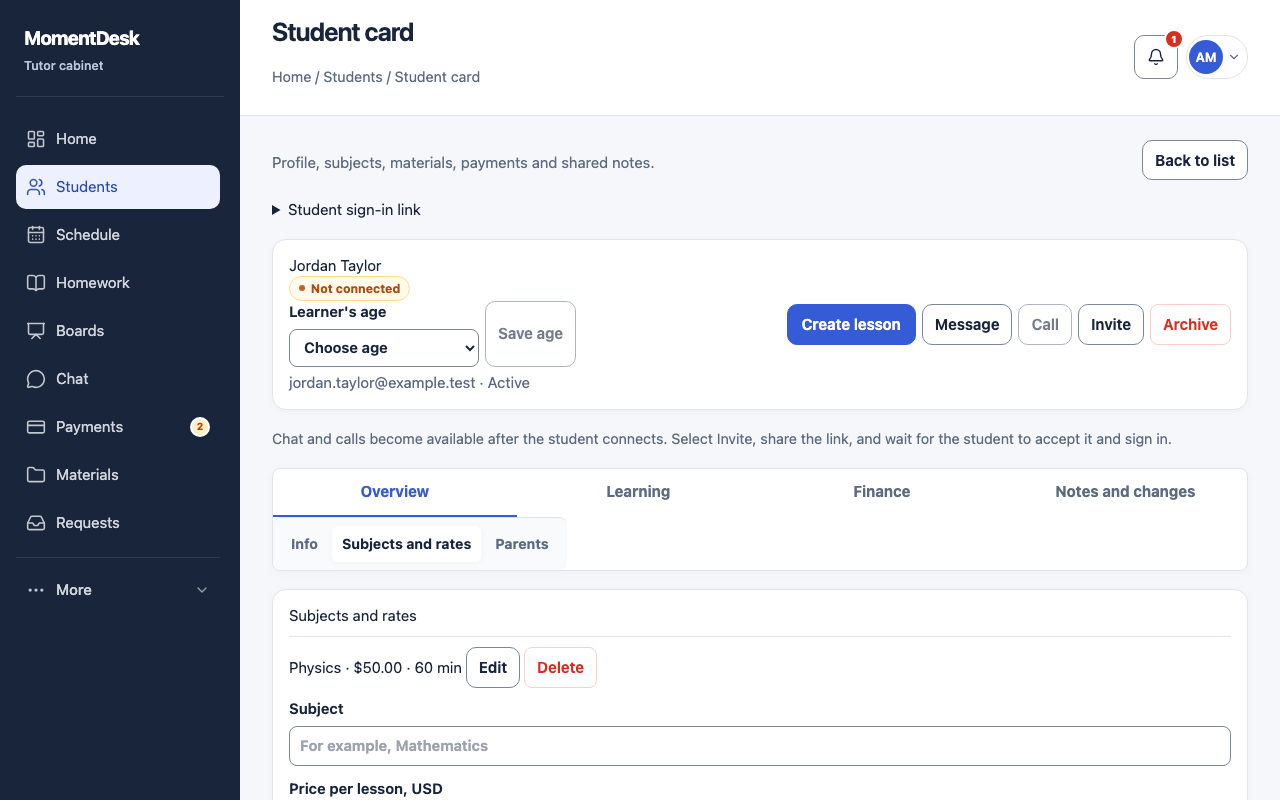
What you end up with
New lessons use the saved price and duration; an unset price stays unset.
What to do
Open the tab
Open the student record and choose Subjects and rates in the Overview group.
Add a subject
Choose a subject from the list so the name reads the same in the calendar and in reports, or type your own.
Set the terms
Enter the lesson price in the displayed currency and Usual duration, min. The price can stay empty; 0 means a free lesson. Add a Note if useful — it is yours and is not shown to the student.
Save the rate
Choose Add subject. The subject becomes available in the lesson form for this student only.
Correct without duplicating
Choose Edit on the existing row, change the fields and choose Save subject. Remove a subject only when you no longer teach it to this student.
Good to know
- Changing a rate does not reprice lessons that already happened.
- Editing a price or duration keeps the currency of the existing rate.
- The price of a single future lesson can be changed in the schedule without touching the rate.