Tutor guide · Students
Add a student and set their age group
A name, an age group and at least one subject are required to create the record. Contacts and prices can follow later.
Tutors adding someone new to their workspace.
What you end up with
The student appears in your active list with their own record, ready for an invitation and a first lesson.
What to do
Open the form
From Students, choose Create student, or use Add student on Home.
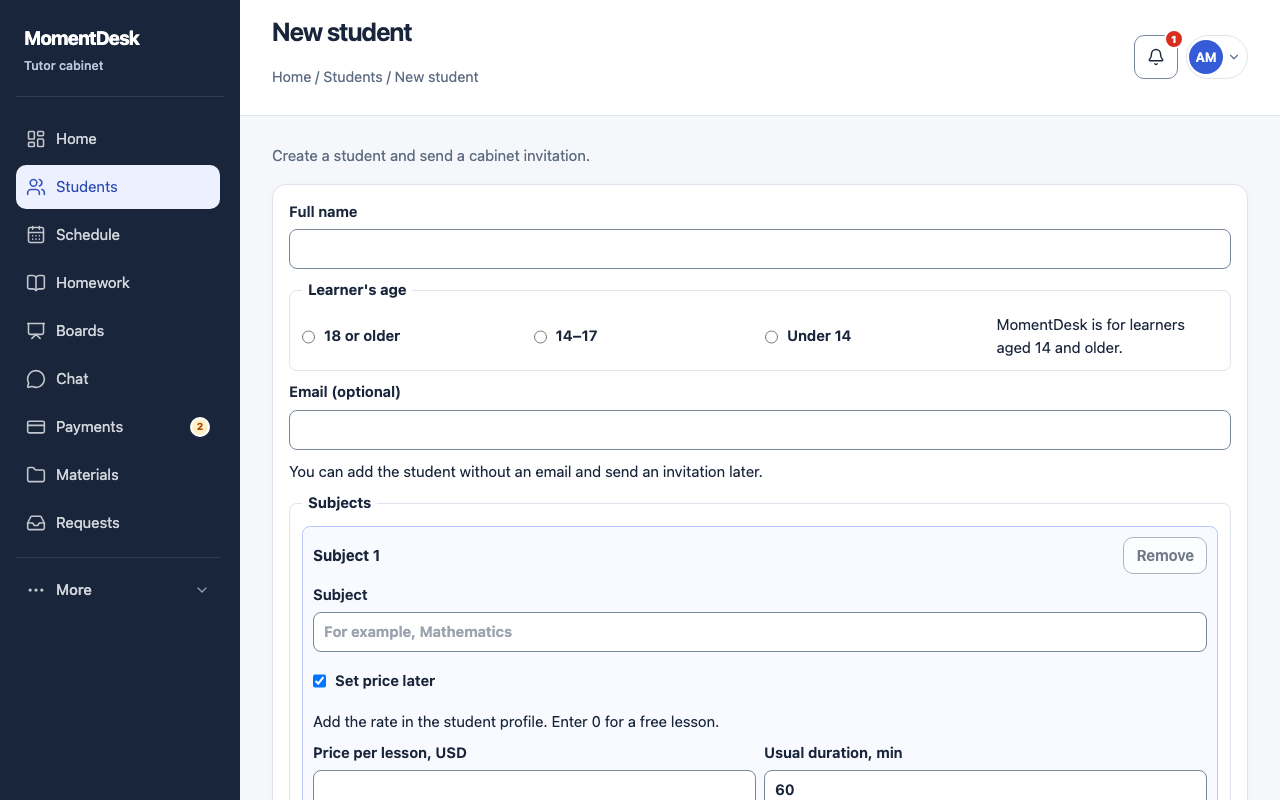
Enter the name
Fill in Full name the way you want to read it in the schedule and in reports.
Choose the learner's age
Under Learner's age, choose 18 or older or 14–17. Under 14 is shown but cannot be saved: MomentDesk is not available for learners under 14. Choosing 14–17 adds a reminder that a parent or guardian has to confirm before the learner can sign in.
Add an email if you have one
Email (optional) can stay empty. A student without an email can still be invited with a personal link.
Add subjects and rates
Under Subjects, choose or type at least one subject. Set price later leaves the price unset; if you already know it, clear the checkbox and enter the amount in the displayed currency. Set Usual duration, min. Add subject adds another one to the same student. These values are filled into new lessons automatically and can still be changed per lesson.
Save and continue
Choose Save. For a learner aged 14–17, their record opens so you can invite a parent or guardian. For an adult learner during first setup, the lesson form opens with the student selected. When adding a student normally, their record opens.
Good to know
- Do not create a second record for a new subject. Add the subject to the student you already have.
- The invitation is a separate action after saving, so the student does not receive anything while you are still filling the form.
- Prices are recorded in the currency shown next to the field. Editing an amount never converts it to another currency.
- An unset price is different from zero. If the lesson is free, enter 0 explicitly.
If something goes wrong
- The form will not save.
- Check the name, an allowed age group, at least one subject and the duration. If you are not setting the price later, enter a non-negative amount. Under 14 cannot be saved.
- The student cannot sign in after you added them.
- A learner aged 14–17 needs guardian consent: invite a parent or guardian and wait for confirmation. Then share the student’s personal link or sign-in code.