Tutor guide · Schedule
Schedule a lesson
The form fills duration and any known price from the student's subject. Check the time zone and amount before saving.
Tutors planning their week.
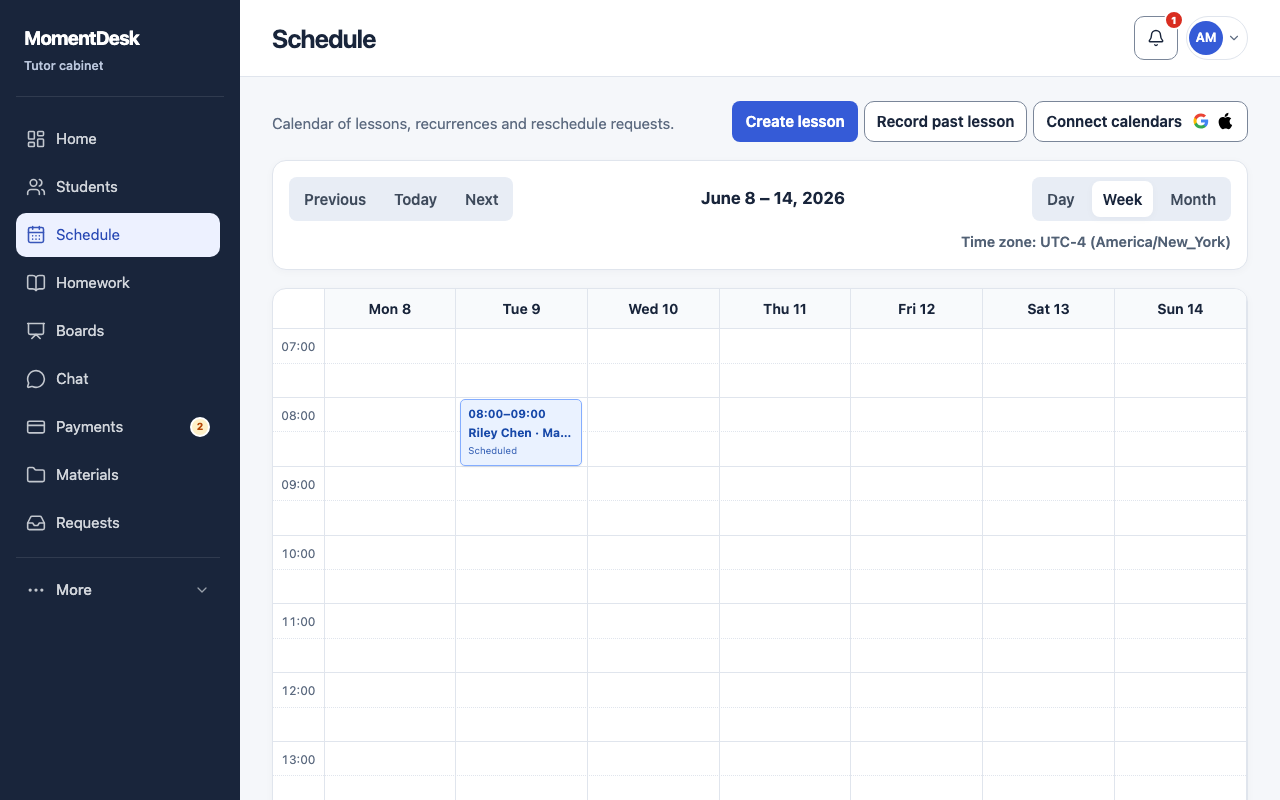
What you end up with
The lesson appears on the calendar at the intended time for both of you.
What to do
Open the form
In Schedule, choose Create lesson. From a student record, the first lesson can be started with the student already selected.
Choose student and subject
Student and Subject drive the defaults. Choosing a subject fills its saved duration and price, if a rate is set.
Set date, time and zone
Check Date and time, Duration, minutes and Time zone together. The zone above the calendar tells you which zone the grid is drawn in; a student in another zone sees the same lesson at their own local time.
Adjust the price if needed
Price applies to this lesson only and does not change the subject rate or other lessons. If the rate is not set, enter the agreed amount. Enter 0 for a free single lesson.
Save and confirm
Leave Repeat off for a single session, save, and check that the lesson is on the calendar where you expected it.
Good to know
- A lesson in the calendar is a plan. It becomes a taught lesson only when you complete it.
- Around daylight-saving changes, confirm the date and the zone together rather than the clock time alone.
If something goes wrong
- The lesson shows at the wrong hour.
- Compare the zone shown above each calendar before moving the lesson itself.
- The price is empty.
- The subject has no rate yet. Enter an agreed price for this single lesson or set a subject rate for future lessons; 0 is allowed for a free single lesson.