Save a copy
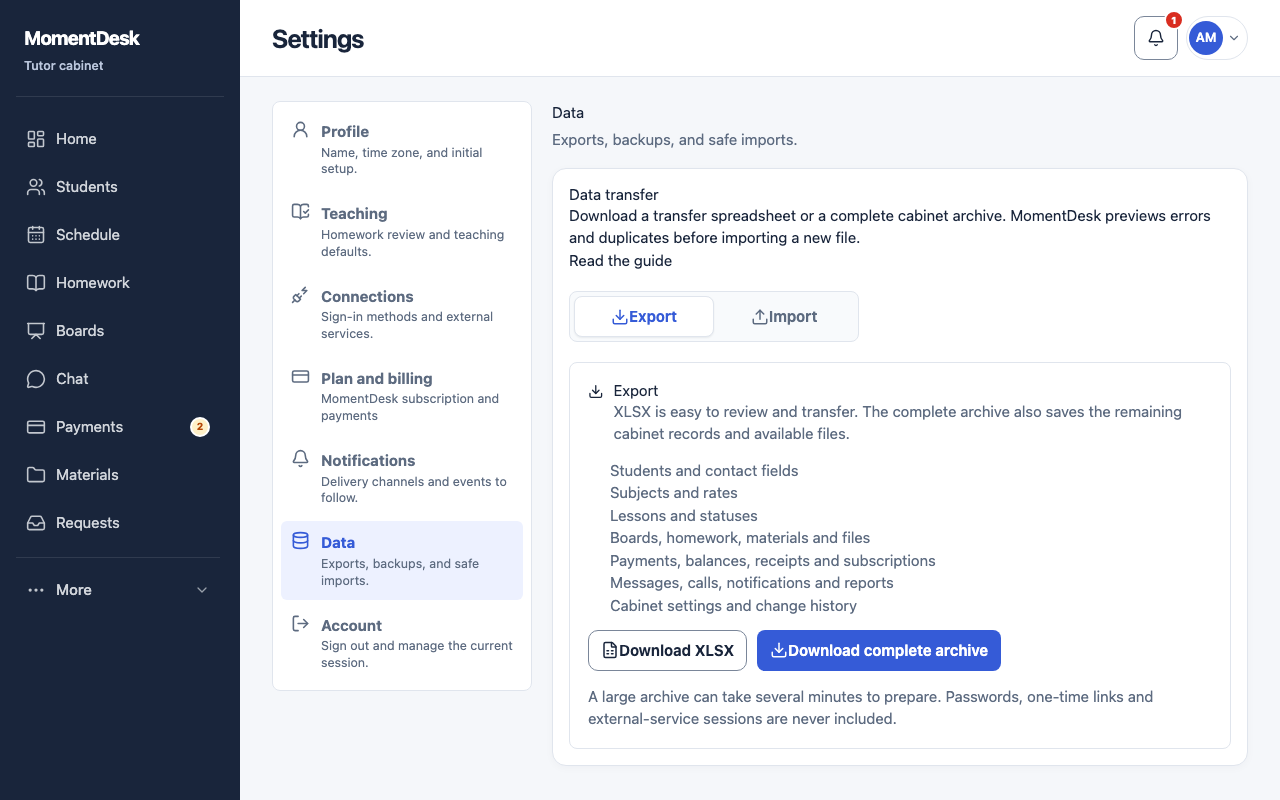
Open Settings → Data transfer in your tutor account. Download an XLSX workbook for students, subjects, rates and lessons. Exporting does not change your account.
The complete ZIP archive also contains account records and available files, with a manifest that identifies missing files. It excludes passwords, sign-in codes, external session credentials and temporary checkout links. Keep the archive private: it contains your teaching records and personal data.
Prepare an import
For an import from the complete archive, extract momentdesk.xlsx from the ZIP first. Import restores the supported students, subjects, rates and lessons. It does not automatically restore boards, uploaded files, JSONL records or financial transactions from the complete archive.
Keep the workbook’s Students, Subjects and Lessons sheets and their column headings. Linked subjects and lessons must refer to students and subjects in the same file. You can also use a portable ZIP or a UTF-8 CSV file; a standalone CSV is useful for students. The uploaded file must be no larger than 10 MB.
Preserve prices and times
Supported currencies are USD, EUR, GBP, JPY, KRW and RUB. An explicit currency stays with its amount; import does not convert prices. Amounts must fit the currency’s precision: for example, USD 45.50 is valid, USD 45.501 and JPY 45.50 are rejected. If a currency or time zone is blank, your account’s default supplies it.
Lesson dates must include a UTC offset. During a daylight-saving change, 01:30 −04:00 and 01:30 −05:00 describe different moments. Keep the offsets from your export to preserve the correct schedule.
Preview, then confirm
Choose your file and run the preview. Check the counts of new and skipped rows, along with any warnings. Errors identify the affected sheet and row; correct the source file and preview it again before applying.
Confirm the import once you have reviewed it. A failed application does not leave a partially imported set of records. Reapplying an already applied file does not create another copy. Existing students, subjects and lessons are also checked for duplicates; review skipped rows because an import does not overwrite those records.
After import, compare names, prices and lesson times with your original file. Historical lesson records do not recreate money received or financial ledger entries, so reconcile balances separately.