Tutor guide · Account and settings
Change your name, time zone and grading default
Your time zone is the one setting that changes how every lesson and deadline reads.
Tutors whose details or working setup changed.
What you end up with
Times, names and defaults match how you actually work.
What to do
Open Settings
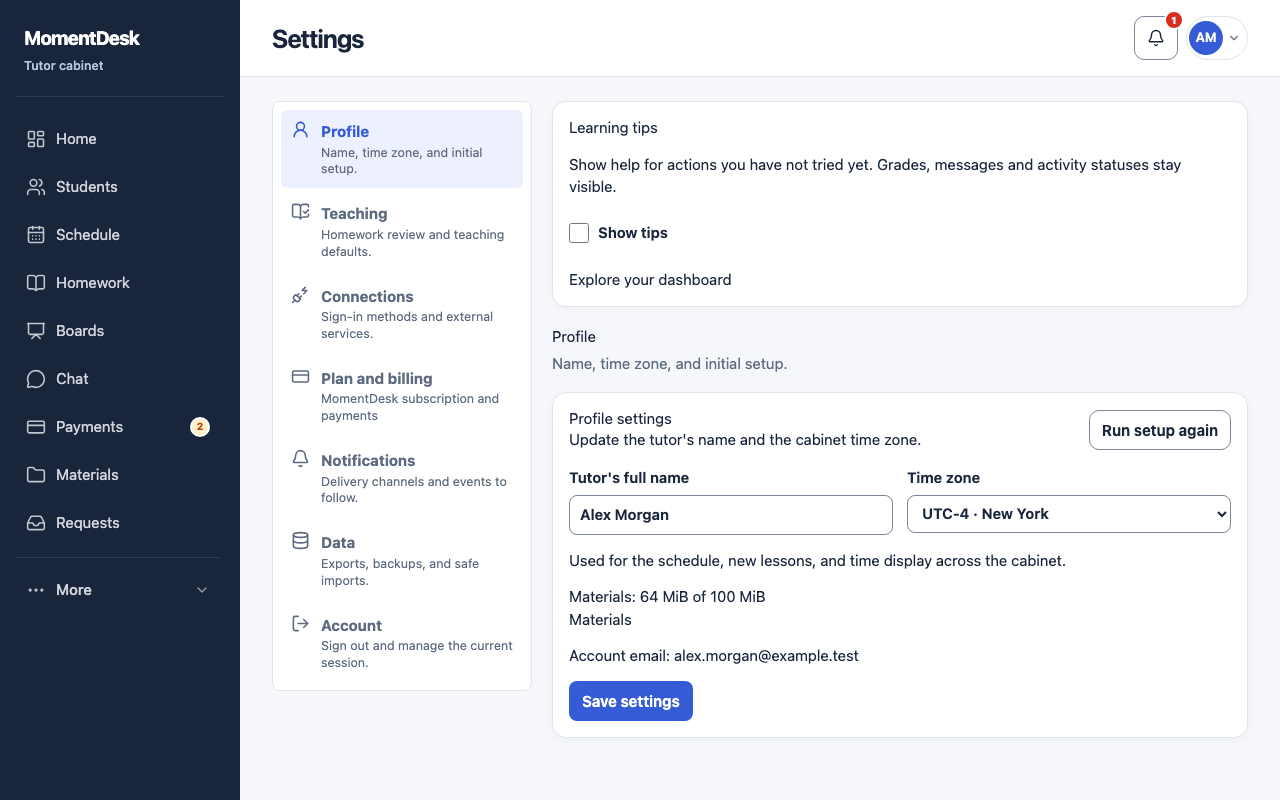
Open the account menu in the top bar and choose settings. The sections are Profile, Teaching, Connections, Plan and billing, Notifications, Data and Account.
Update your details
Under Profile, change Tutor's full name and choose Save settings. The account email is shown for reference.
Move your time zone
Change Time zone when you move or travel for a season. It is used for the schedule, new lessons and every time shown in the workspace. Lessons already saved keep their real moment; only the display changes.
Set the grading default
Under Teaching, choose the default review mode: no grade, a 5-point or 10-point scale, or emoji. You can still change it in an individual review.
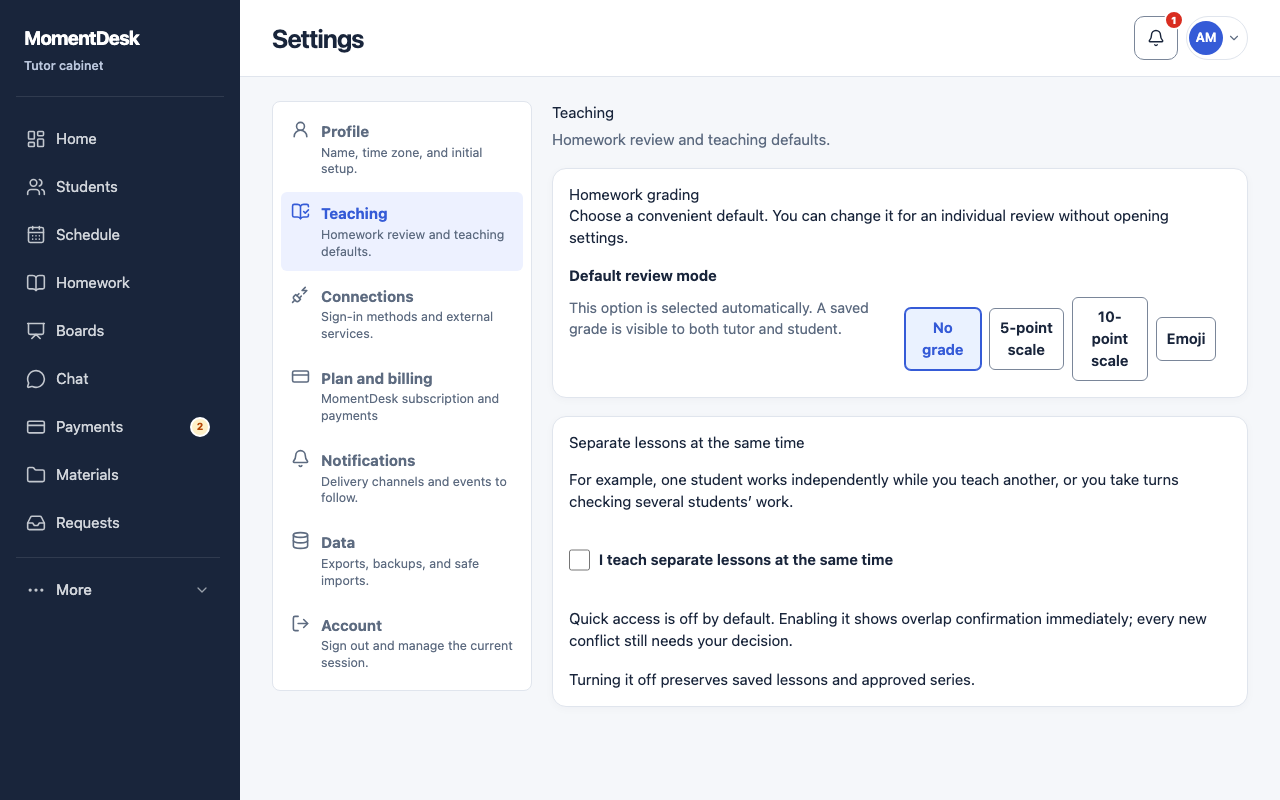
The MomentDesk interface in English, shown with fictional names and records. Run setup again
Run setup again reopens the quick setup without deleting anything.
Sign out
Sign out ends the current session. Use it on a shared computer.
Good to know
- The time zone shown in the top bar always tells you which zone the workspace is drawing.