Tutor guide · Getting started
Set up your tutor workspace
Quick setup takes a few minutes and sets the two things everything else depends on: your display name and your time zone.
Tutors opening MomentDesk for the first time.
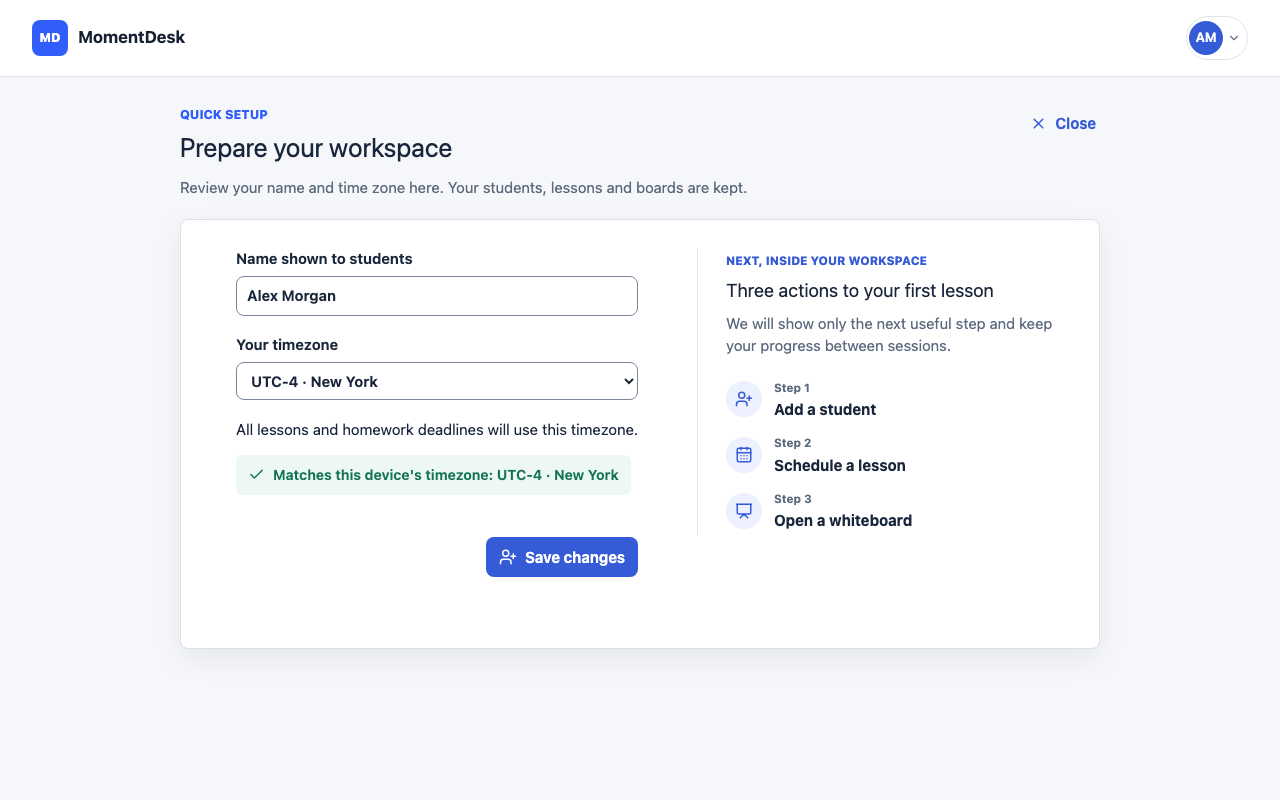
What you end up with
Your workspace shows the right times, and Home tracks the remaining steps while tips are enabled.
What to do
Open quick setup
After your first sign-in MomentDesk opens Prepare your workspace. You can return to it later from Settings → Profile → Run setup again.
Set the name students see
Fill in Name shown to students. It appears in invitations, in the chat and on your public page, so use the name you introduce yourself with.
Set your time zone
Choose Your timezone, or accept the device zone MomentDesk offers. Pick a city zone such as America/New_York rather than a fixed offset, so daylight saving is handled for you. Every lesson time and homework deadline is shown in this zone.
Save and add your first student
Choose Save and add a student. The student form opens next. Add the learner's age group and at least one subject; you can set the price later.
Finish the three first steps
Three actions to your first lesson covers adding a student, scheduling the first lesson and creating a saved board. Prepare your first lesson on Home tracks these actions while tips are enabled. When you save a learner aged 14–17, their record opens first so you can invite a parent or guardian. You can then create the lesson from Schedule. For an adult learner, continuing from the student form carries that student into the lesson form; saving the lesson carries them into the board form.
Skip and come back
Skip setup opens a confirmation; Open workspace saves the current profile settings and opens Home. Nothing is deleted. You can return to setup from Settings.
Good to know
- Changing your time zone later does not move lessons already in the calendar; it changes how they are displayed.
- MomentDesk is for learners aged 14 and older, so every student you add needs an age group before they can sign in.
- You can turn tips off with I already know this service, or restore them with Show tips in Settings. This does not delete your students, lessons or boards.
- Changing the interface language does not change your account time zone or the currency of lesson records.