Student guide · Payments
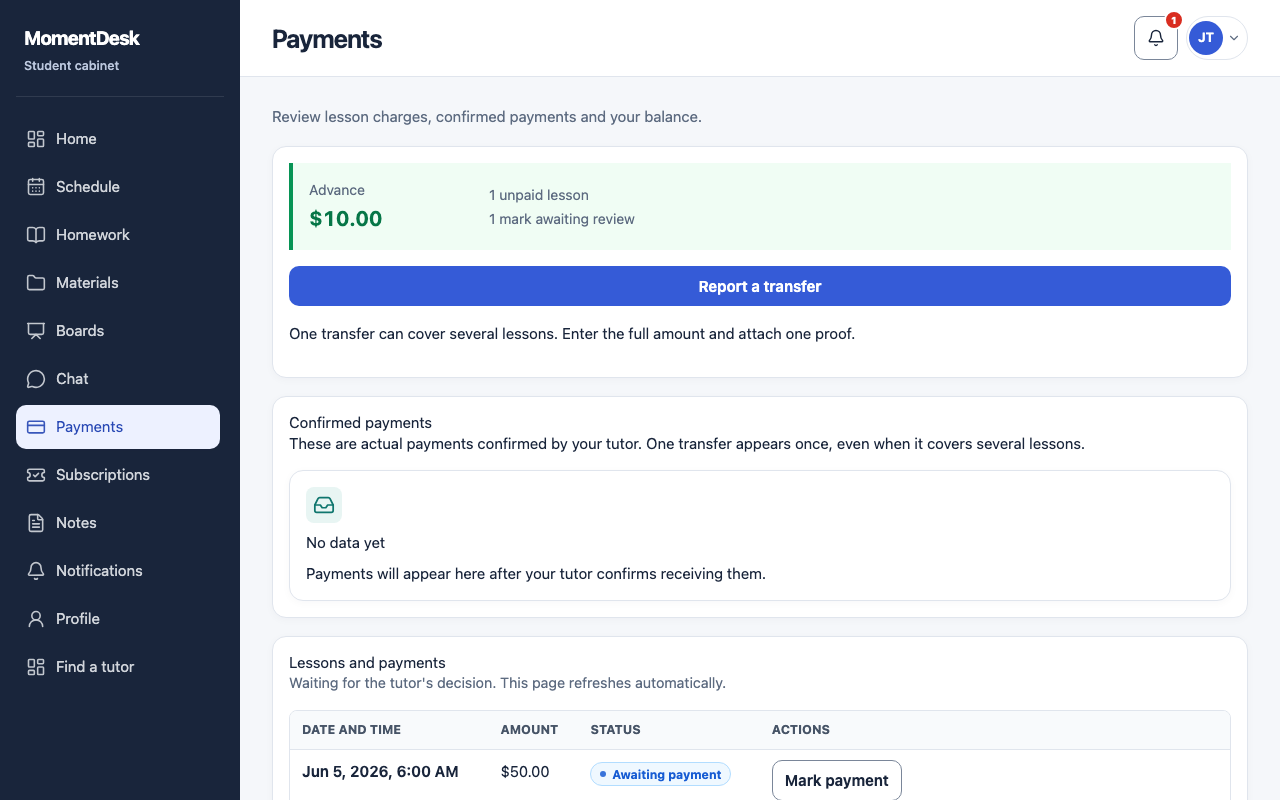
Report a payment you made
A mark tells your tutor to look. Their confirmation is what changes the balance.
Students who transfer money to their tutor themselves.
What you end up with
Your tutor can review your payment report and confirm the received money.
What to do
Open Payments
Choose Payments in the menu and find what you paid for.
Open the mark
Use Mark payment on a chargeable completed lesson or a cancellation with charge. For one transfer covering several charges, use Report a transfer on the account and check its currency.
Describe the payment
Enter the Amount actually sent and a Comment explaining when and how you paid. An account transfer proposes covering the oldest charges first; confirmation recalculates it against the current balance.
Attach the proof
Add a Payment screenshot if you have one. PNG, JPG, WEBP or PDF up to 5 MB.
Send it
Choose Send mark. The page then shows that the mark is awaiting your tutor's confirmation.
Follow the decision
The status becomes Confirmed or Rejected. A rejection shows your tutor's reason, so you can correct and send again.
Good to know
- Do not send the same mark repeatedly. Wait for the decision, or ask your tutor in chat.