Tutor guide · Students
Edit, archive and restore a student
Archiving hides a student from the working list. It does not delete lessons, homework or payment records.
Tutors tidying an active list at the end of a term.
What you end up with
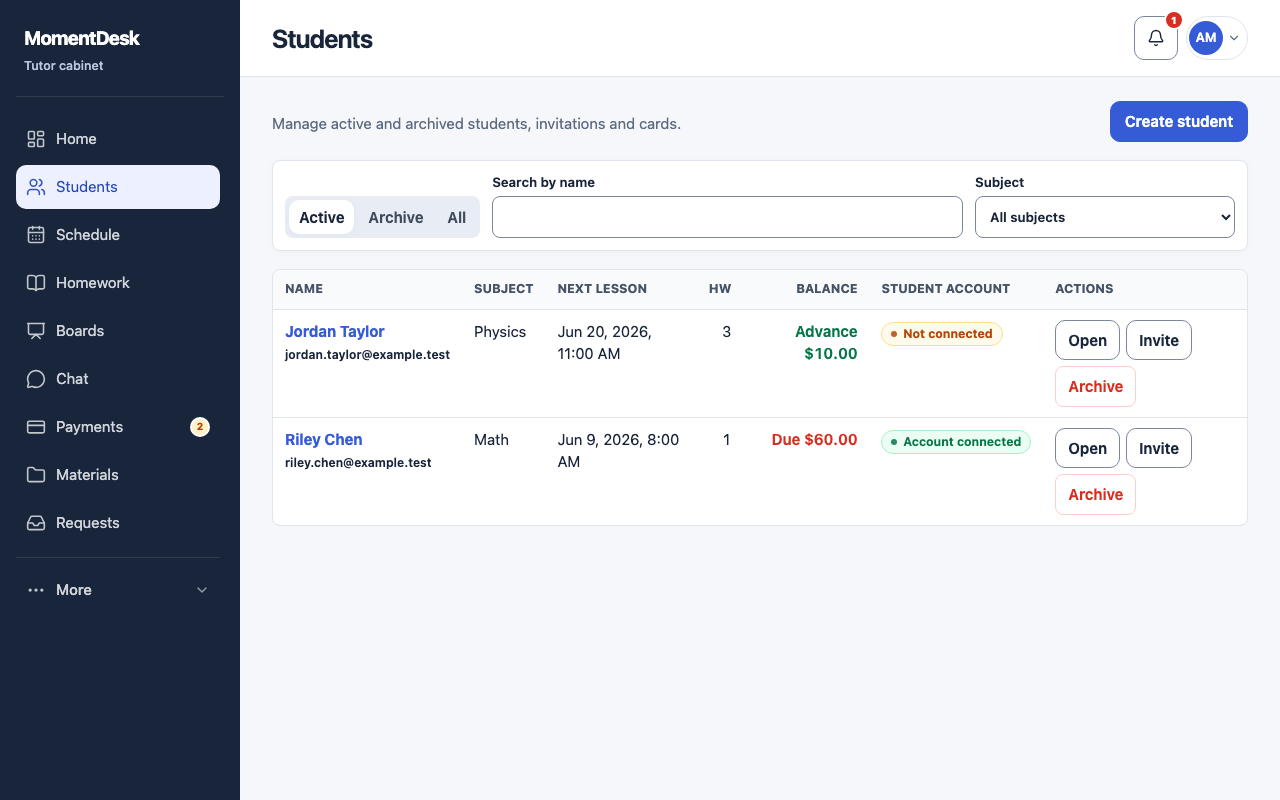
Your active list matches who you actually teach this month.
What to do
Find the student
Use the Active, Archive and All tabs at the top of the list.
Edit the details
Open Info in the record and choose Edit to change the name, phone, messenger and parent contacts, then Save. Email comes from the invitation and cannot be edited here. Change age at the top of the record, and subjects or rates on their own tab. Past lessons keep their original terms.
Archive a finished student
Choose Archive and confirm. Planned lessons stay in the schedule and keep holding their time slots — cancel the ones you no longer need separately.
Restore when they come back
Open the Archive tab, open the student and choose Restore. Their history is still there.
Good to know
- An archived student cannot be invited, messaged or given new work until you restore them.
- If your plan limits active students, records outside the limit become read-only rather than disappearing.