Tutor guide · Materials and boards
Run a lesson in one workspace
The lesson workspace puts the board and everything around it on one screen, so you are not switching tabs mid-explanation.
Tutors teaching online.
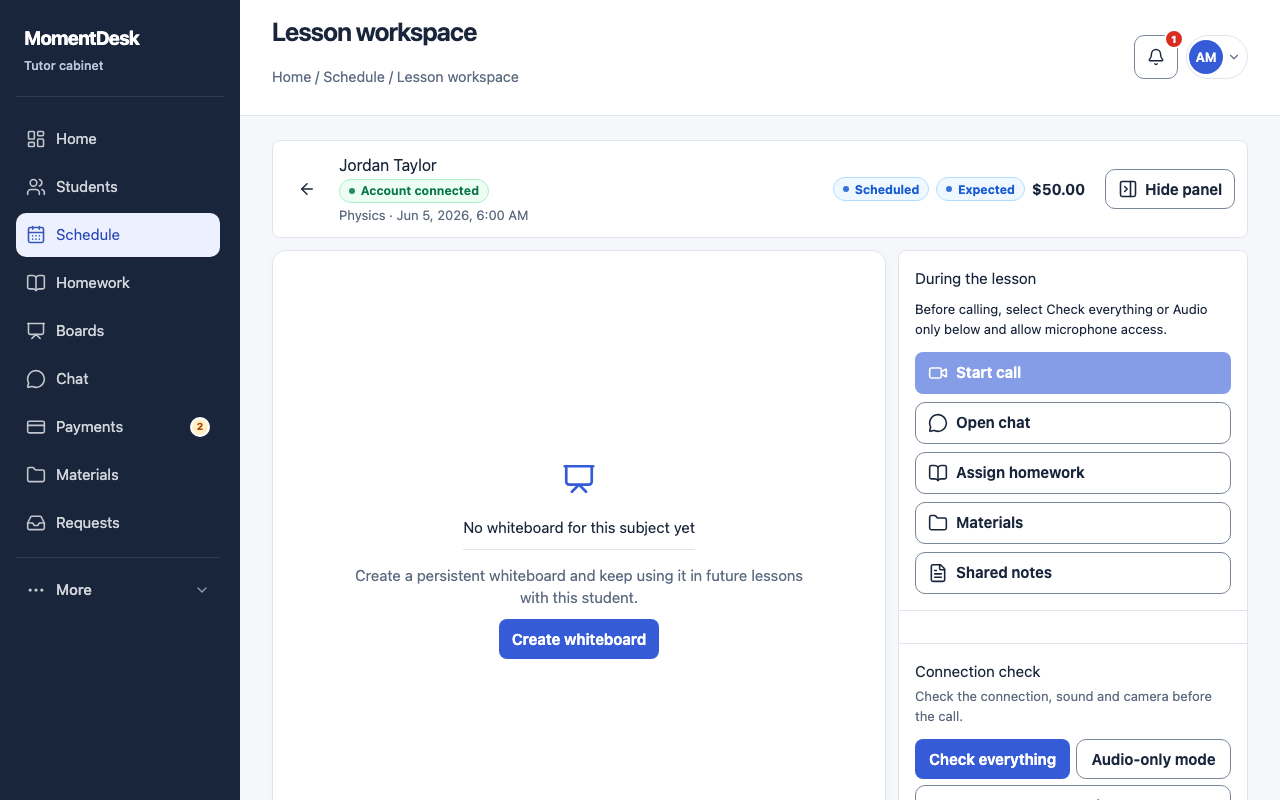
What you end up with
The teaching tools are together, and the saved board can be reopened after the lesson.
What to do
Open it from the lesson
In Schedule, open the lesson and choose Open lesson workspace.
Choose the board
Pick the Whiteboard for this lesson, or Create whiteboard for a new one. Choosing a persistent board keeps continuity between lessons.
Check the connection
When calls are available, Connection check tests internet, the lesson connection, microphone and camera. Check everything runs the checks; Audio-only mode checks without video.
Use the panel during the lesson
Call and materials opens the actions for the lesson: open chat, assign homework, open homework, materials and shared notes.
Start the conversation
After a successful check, use Start call in the workspace, or Call in the student chat. Both participants allow browser access to microphone or camera. If calls are unavailable, use your usual meeting service alongside the workspace.
Close the lesson
When the lesson is over, complete it from the schedule and set the practice that follows.
Good to know
- The board opened here is a normal saved board; it stays in Boards afterwards.
- Check the microphone, camera and connection before your first call. An external meeting link is also available when you prefer your usual meeting service.