Tutor guide · Schedule
See your lessons in another calendar
MomentDesk publishes your lessons at a private calendar address. Your calendar app reads it; it does not write back.
Tutors who live in another calendar app.
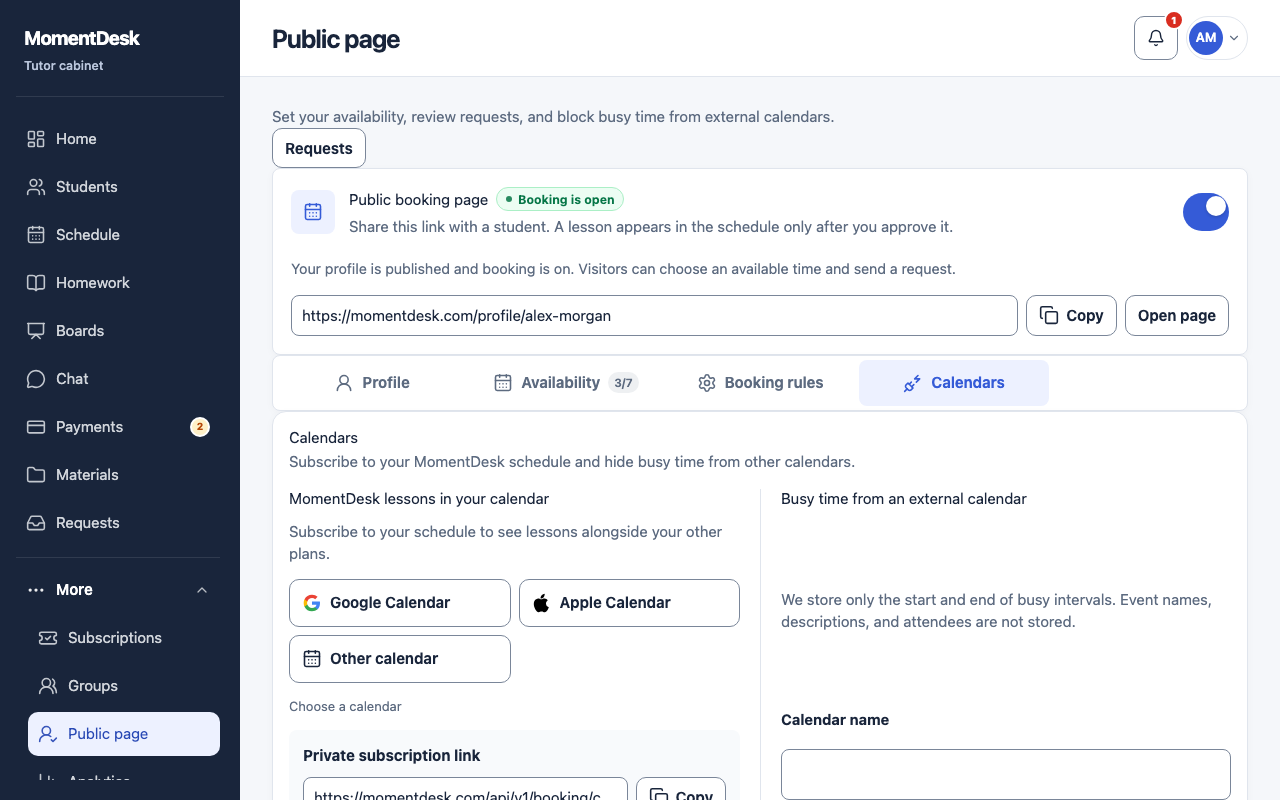
What you end up with
Your lessons appear beside your other plans after the subscription refreshes.
What to do
Open Calendars
Connect calendars at the top of Schedule takes you there, or go to Public page and choose the Calendars tab.
Choose your calendar app
Under MomentDesk lessons in your calendar, choose Google Calendar, Apple Calendar or Other calendar. Each one explains where to paste the address in that app.
Copy the private subscription link
Use Copy beside the Private subscription link. Treat it as private: anyone holding it can read your lesson times.
Paste it into your calendar
In Google Calendar, add a calendar from a URL. In Apple Calendar, add a calendar subscription and choose how often it refreshes. Use a subscription rather than a one-time file import. Both apps refresh on their own schedule, not instantly.
Check the result
Create or move a lesson in MomentDesk and confirm it appears in the other calendar after its next refresh.
Good to know
- The subscription is read-only. Editing an event in your calendar app does not change the lesson in MomentDesk.
- Times follow your MomentDesk profile time zone.
- The other half of the same tab works the opposite way: give MomentDesk a private address from another calendar and its busy time blocks your booking slots. Only the start and end of each interval are stored.
If something goes wrong
- A new lesson is missing in the other app.
- Wait for that app's refresh interval, or refresh the subscription manually.