Tutor guide · Schedule
Lesson rescheduling messages you can adapt
A proposed time is not a confirmed appointment. Keep the request, the agreement and the saved calendar entry consistent.
Independent tutors and learners arranging a lesson change. These messages work with any calendar or messaging service.
What you end up with
Both people know which lesson moved, its new time and which future lessons remain unchanged.
What to do
Identify the lesson and check alternatives
Check the original appointment and two available alternatives. For each, write the date with year, both local times and location-based zones, plus duration. Dates can differ across midnight. Check the actual date around seasonal clock changes; do not reuse last week's offset.
Ask before changing the appointment
Request: “Hi [name], could we move our lesson from [original lesson: date with year, time and zone for the tutor; date with year, time and zone for the learner] to [option A: date with year, time and zone for the tutor; date with year, time and zone for the learner], for [duration] minutes? If that does not work, I can offer [option B: date with year, time and zone for the tutor; date with year, time and zone for the learner]. This request concerns only this lesson. Please tell me which option works; until we agree, the original appointment remains.”
Confirm the agreed change
Confirmation: “Thank you, [name]. We agreed to move only the lesson on [original lesson: date with year, time and zone for the tutor; date with year, time and zone for the learner] to [new time: date with year, time and zone for the tutor; date with year, time and zone for the learner], for [duration] minutes. The next lesson remains [next lesson: date with year, time and zone for the tutor; date with year, time and zone for the learner]. Homework is due [date with year, time and zone]. Please let me know if your calendar shows a different time.”
Reply clearly when neither option works
Reply: “Thanks for the options. Neither works for me. Could we keep [original lesson: date with year, time and zone for the tutor; date with year, time and zone for the learner], or consider [my alternative: date with year, time and zone for the tutor; date with year, time and zone for the learner]? Please confirm before we change the appointment.” If cancellation is necessary, discuss it separately under the policy already agreed between you.
Save and check the appointment
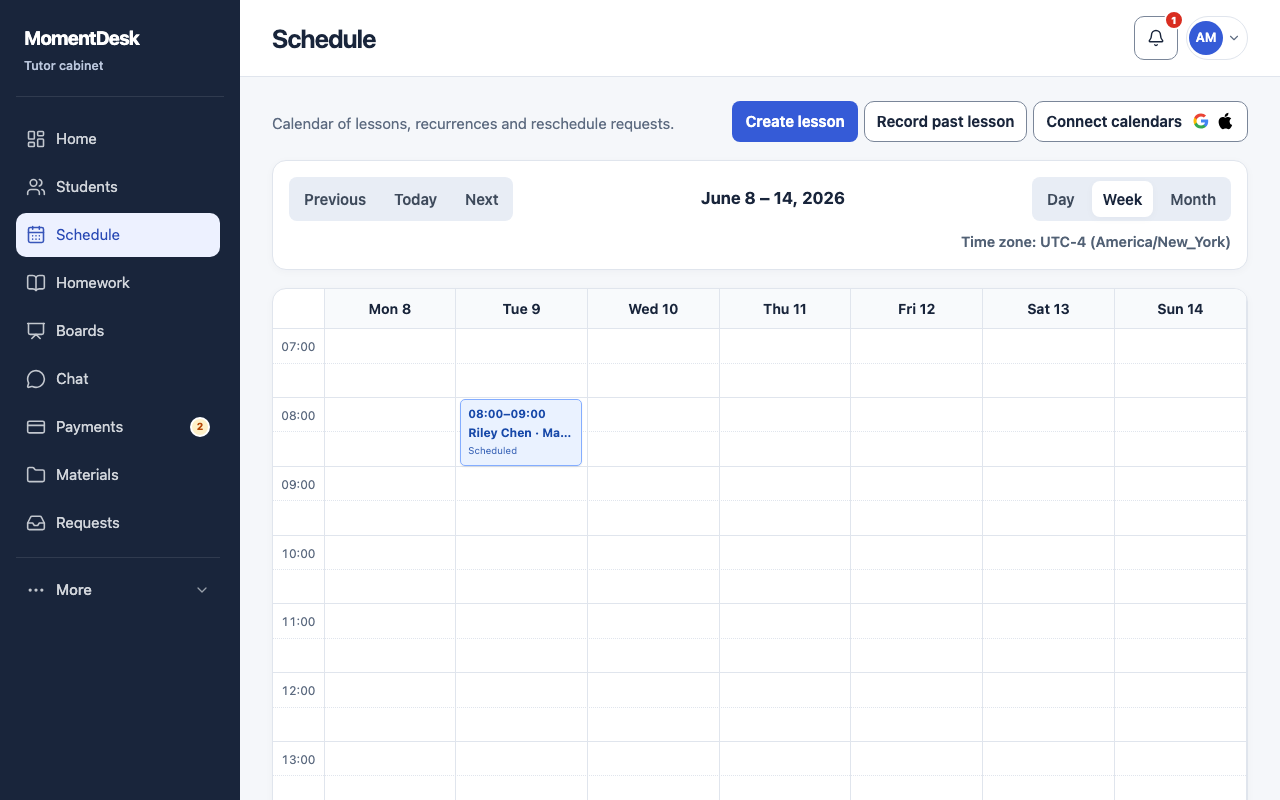
After agreement, move the intended lesson in your calendar and compare the saved date and duration with the confirmation. In MomentDesk, use the lesson reschedule action and check whether it affects one lesson or future lessons. For a change to the series, explicitly agree its start date and the new recurring time, then inspect upcoming dates. Check any separate calendar yourself.
Good to know
- Replace every bracketed field before sending. Remove the homework sentence if no task is due; keep any existing deadline unless you explicitly agree to change it. Remove the next-lesson sentence if no further lesson is scheduled.
- Sending a message does not update a calendar or notify everyone automatically. Do not treat silence as acceptance. Confirm any payment or cancellation decision separately; these templates do not set your policy.
Questions
Should I offer a reason for the change?
A brief truthful explanation is enough if you want to include one. You do not need to share private details. Focus on workable alternatives and a clear confirmation.
Can I use this for all future lessons?
Adapt the request to say it concerns the series from a specific date. State whose local recurring time stays fixed, check clock changes and confirm the affected dates before saving.